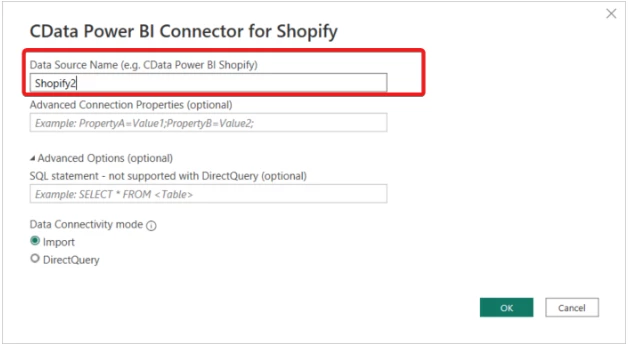
If you have multiple Shopify sites that you are wanting to connect to in Power BI, you will only need one licensed connector. You will just need to configure a DSN for each site. Below is an example of the process for doing this:
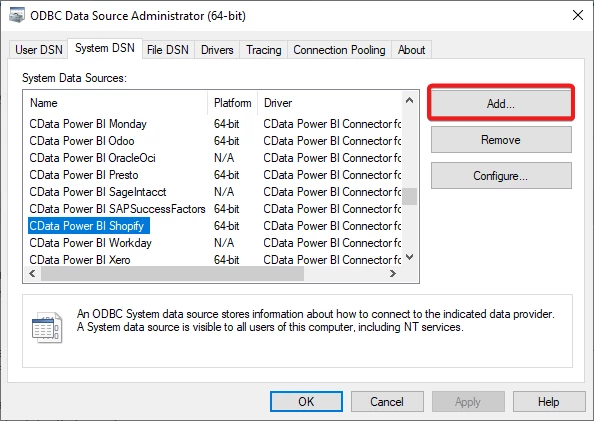
To configure a new DSN, first, open the ODBC Data Source Administrator(64-bit) and go to the 'System DSN' tab then press the 'Add' button as shown below:
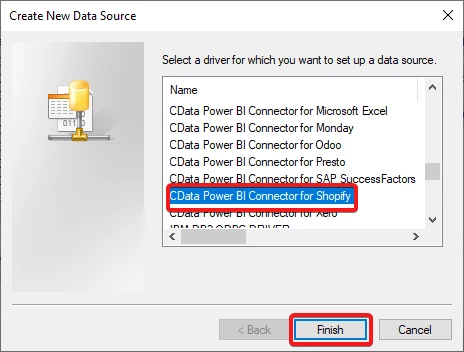
In the new window, scroll down and select 'CData Power BI Connector for Shopify' then press 'Finish' as shown below:
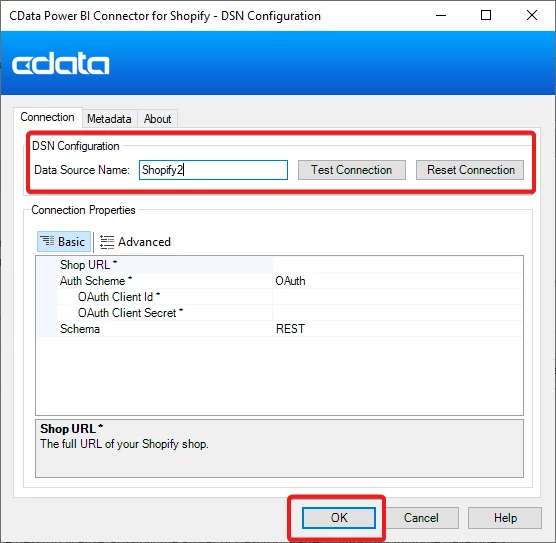
This will open a new and unnamed DSN Configuration window. In this window, you can set the Data Source Name as you wish, such as 'Shopify2', then configure and test the connection and press 'OK' to save the connection:
After saving the DSN Configuration, you can open Power BI, select Get Data and choose 'CData Shopify'. In the following window, you can set the Data Source Name to the name of your new connection, such as 'Shopify2', and you should be good to connect: