
An issue like this one may occur if the credentials are input correctly within the DSN itself, but not in Power BI when it initially prompted you for credentials for the connection to the Power BI Connector or the ODBC driver. In this situation, the faulty credentials stored in Power BI will override the correct credentials stored in the DSN and prevent Power BI from being able to discover the data model.
The simplest way to check for this within Power BI is to navigate to “File” --> “Options and settings” --> “Data source settings”. This should open a window like the below.
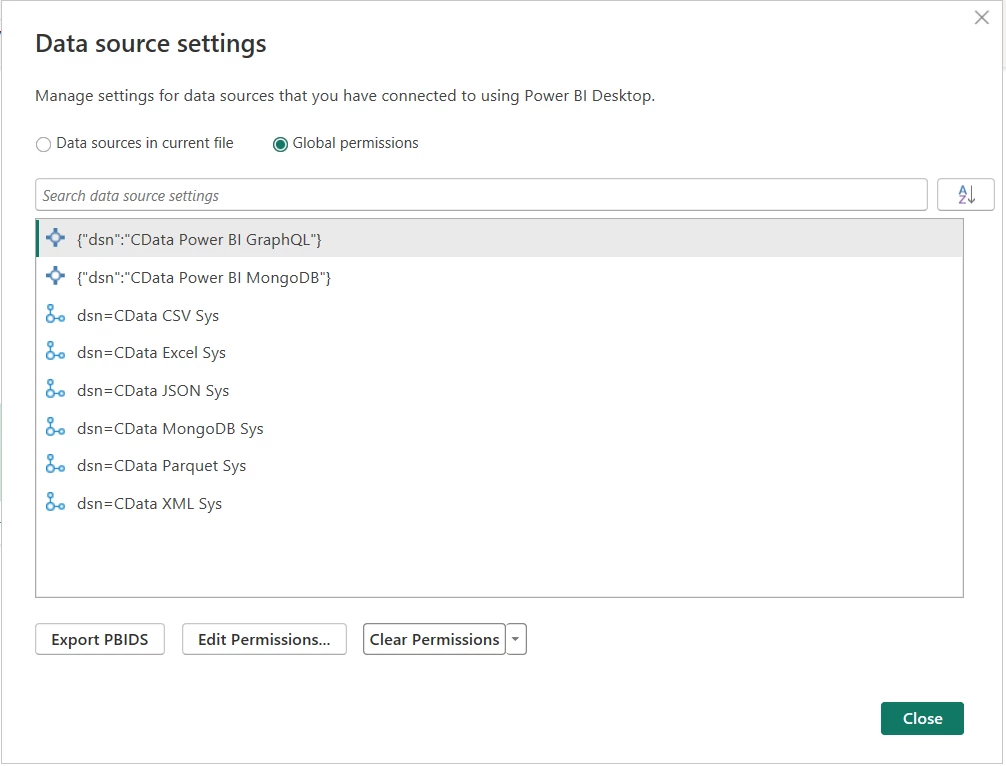
In this window, select the item that pertains to the affected connection, and click on “Clear Permissions”. The next time you open the connection within Power BI, you will be prompted for credentials again. At this point, the safest option is to select “Anonymous”, and then “Connect”.
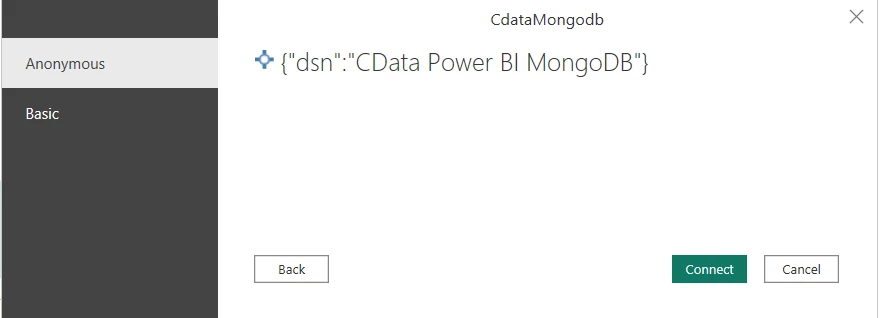
Doing this will ensure that the credentials stored in the DSN are used and not overridden by Power BI. Assuming the metadata retrieval was successful from the DSN configuration tool, the same process should now be successful from within Power BI.