
Sometimes, even though the provided link is free from any viruses, it can be detected as one. Nevertheless, there are some alternative methods to obtain the nodeID.
-
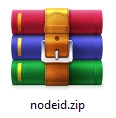
The first method, opening the file attached to this document.
You might also want to consider whitelisting the NodeId executable tool provided by CData. To do so, please follow these steps:
-
Go to Settings
-
Update & Security
-
Windows Security
-
Virus & threat protection
-
Under Virus & threat protection settings select Manage settings
-
Scroll down to Exclusions and click Add or remove exclusions
-
Add an exclusion
-
File
-
Select the nodeId.exe file
-
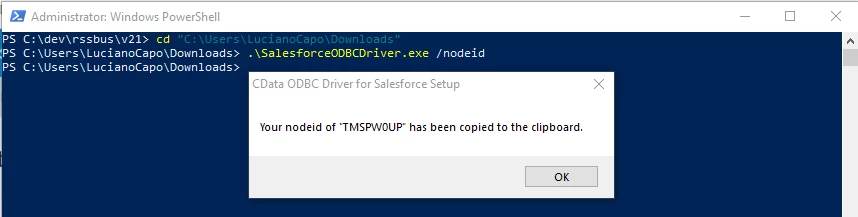
Another method you can utilize is the PowerShell/Command Prompt
To begin, open PowerShell or Command Prompt as an administrator. Next, navigate to the default installation path, typically the Downloads folder, and then enter the following command:
-
.\setup.exe /nodeid (where the setup is the name of the installation file)
For the JDBC driver, you can use the following:
-
Go to the folder where the driver is installed and locate the lib folder
→→
cd "C:\Program Files\CData\CData JDBC Driver for Google Analytics 2022\lib" -
In that folder you will find the correct name of the .jar file which in this example is called cdata.jdbc.googleanalytics.jar. Use the following statement
→→
java -jar cdata.jdbc.googleanalytics.jar -nodeid