Purpose
Steps to create Oracle Destination Connection, which is the native Oracle Managed Data Access Client (Oracle.ManagedDataAccess.dll) in CData Sync .Net Edition.
Step 1: Download ODP.NET_Managed_ODAC.zip from 64-bit Oracle Data Access Components (ODAC) for Windows

Step 2: Copy the Oracle.ManagedDataAccess.dll from D:\Downloads\ODP.NET_Managed_ODAC122cR1.zip\odp.net\managed\common

Step 3: Put it in www/bin folder

Step 4: Add provider in web.config file
<remove invariant="Oracle.ManagedDataAccess.Client" /><add name="ODP.NET, Managed Driver" invariant="Oracle.ManagedDataAccess.Client" description="Oracle Data Provider for .NET, Managed Driver" type="Oracle.ManagedDataAccess.Client.OracleClientFactory, Oracle.ManagedDataAccess, Version=4.122.1.0, Culture=neutral, PublicKeyToken=89b483f429c47342"/>

Step 5: Check the Version, Culture and PublicKeyToken to match your DLL’s.
Steps to check Version, Culture and PublicKeyToken:
-
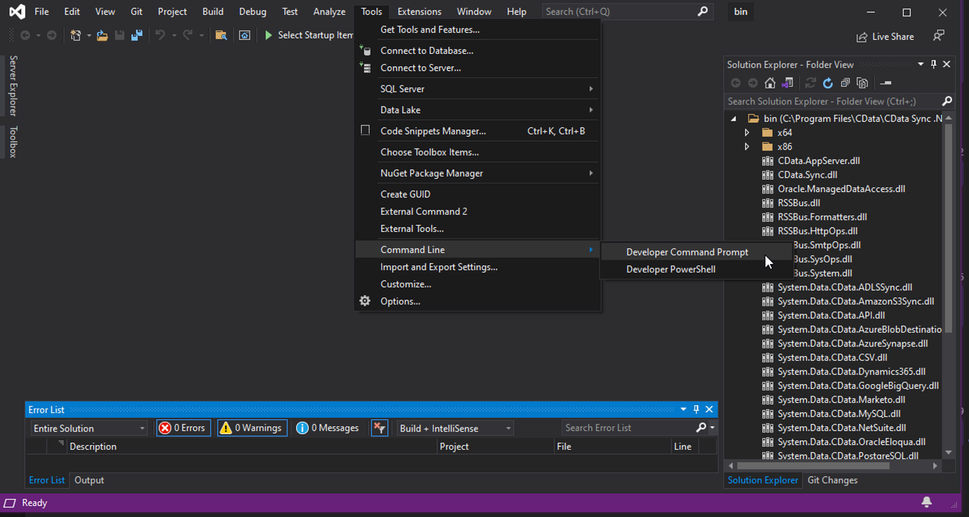
Open Visual Studio’s Developer Command Prompt
-
cd into www/bin directory
-
Use the sn.exe tool to extract the public key token: In the command prompt, run the following command:
sn -Tp Oracle.ManagedDataAccess.dll -
Open www/bin directory in Visual Studio to open the Oracle.ManagedDataAccess.dll file.
Double click on Neutral. Neutral is your Culture
Oracle.ManagedDataAccess.dll/Version/Neutral
This is the Version: