In the input there is a value “<N201>Germany GmbH & Co. KG</N201>”. After it is mapped it is “
<Address>Germany GmbH & Co. KG Hahnstraße 70</Address>”. How can I set it up that special characters are still escaped after the mapping. Because now the next Json connector is failing because of the & character.
Best answer by TR3X
Hi IT Gheys,
Thanks for the update and for sharing the details.
The behavior you are seeing is expected. When values are concatenated inside an XML Map node, Arc automatically decodes XML entities (for example, & becomes &). This is normal and happens any time you combine or manipulate text within the mapper.
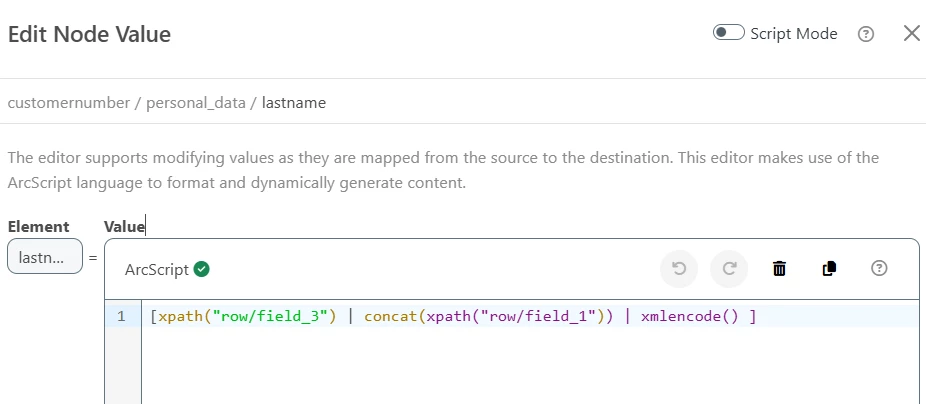
Since your Address value is created using concatenation, the XML is decoded during that process. To ensure that the final output remains valid XML, you simply need to apply the xmlEncode() formatter after the concatenated string. This will re-encode all special characters, including &, back into their XML-safe form {&).
This ensures the final mapped node is properly escaped for downstream connectors such as JSON.
If this does not resolve the issue, could you share a screenshot of the Edit Node Value page for the specific node where the problem occurs? A screenshot similar to the one below would be perfect:
This will help us confirm the exact mapping logic and guide you further.
Can you let me know what process is creating these XML files? Are they being generated within a connector inside CData Arc, or are they coming from an external source?
Regardless of where they originate, if the XML files contain raw & characters that are not encoded, this is invalid XML. You will need to ensure that any system generating these XML files properly encodes the & character—and any other special characters—instead of placing them in plaintext.
Ideally, you should contact the source of the XML files and inform them that using unescaped & characters in XML is not valid. However, it is possible to correct these values within Arc using either the XML Map Connector or a Script Connector.
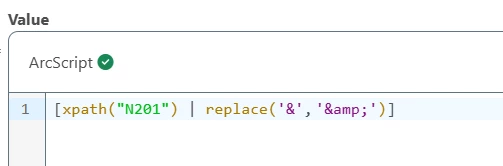
Since you are already using an XML Map Connector, you can convert unescaped values to properly encoded XML values directly in the map. For example, you can update the node like this:
[xpath(N201) | replace('&','&')]
Alternatively, you can use a Script Connector before the XML Map to replace all unescaped values.
Below is an example script that uses the fileRead operation along with the replace formatter. This reads the file content and replaces any instance of & with its encoded form:
Formatter replace failed in the evaluation of <Address>[xpath("FunctionalGroup/TransactionSet/TX-00401-940/N1Loop1\[N1/N101='SE'\]/N2/N201")][xpath("FunctionalGroup/TransactionSet/TX-00401-940/N1Loop1\[N1/N101='SE'\]/N2/N202") | replace('&','&')][xpath("FunctionalGroup/TransactionSet/TX-00401-940/N1Loop1\[N1/N101='SE'\]/N3/N301")]</Address>. The error was:The attribute does not exist. This formatter cannot be called with nonexistent attributes.Value: Parameters: &&Stack Trace: at Node: /Order/Customer/Address at Loop: /Interchange. Runtime XPath: /[1]/
I also tried the script connector after the XML Map Connector. But the output of that script connector is still the same as the input:
<Address>Germany GmbH & Co. KG Hahnstraße 70</Address>
=>
<Address>Germany GmbH & Co. KG Hahnstraße 70</Address>
Thanks for the update and for sharing the details.
The behavior you are seeing is expected. When values are concatenated inside an XML Map node, Arc automatically decodes XML entities (for example, & becomes &). This is normal and happens any time you combine or manipulate text within the mapper.
Since your Address value is created using concatenation, the XML is decoded during that process. To ensure that the final output remains valid XML, you simply need to apply the xmlEncode() formatter after the concatenated string. This will re-encode all special characters, including &, back into their XML-safe form {&).
This ensures the final mapped node is properly escaped for downstream connectors such as JSON.
If this does not resolve the issue, could you share a screenshot of the Edit Node Value page for the specific node where the problem occurs? A screenshot similar to the one below would be perfect:
This will help us confirm the exact mapping logic and guide you further.