When configuring a replication Job after creating a Connection to your SQL Server database, you may initially find that you are unable to utilize this Connection as a Destination.
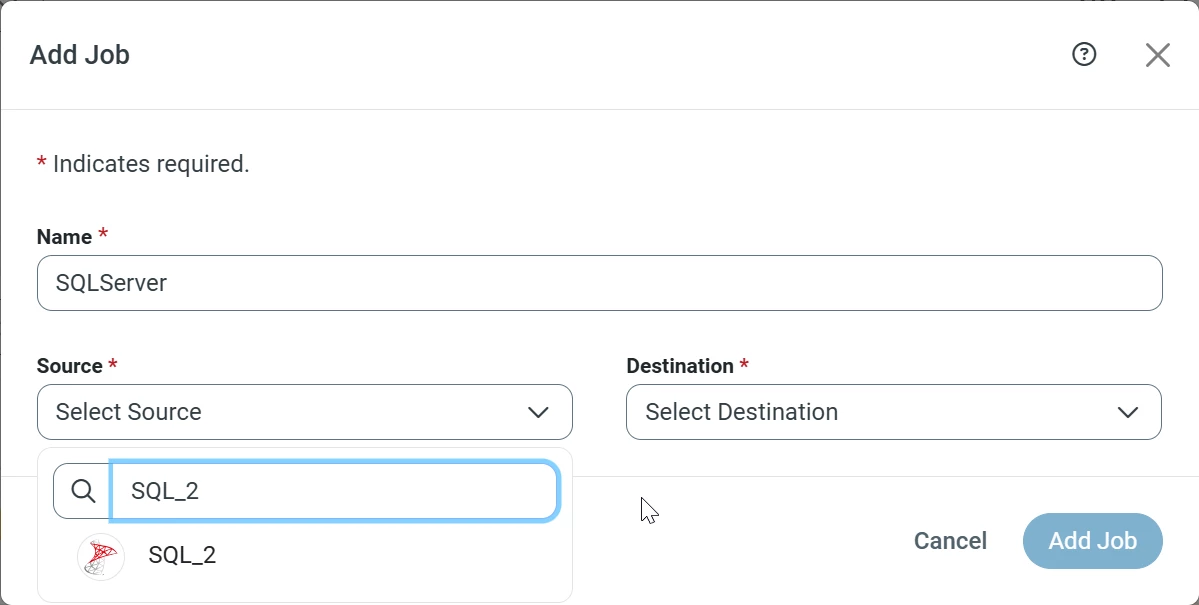
The Connection appears as intended when selecting a Source for the Job:
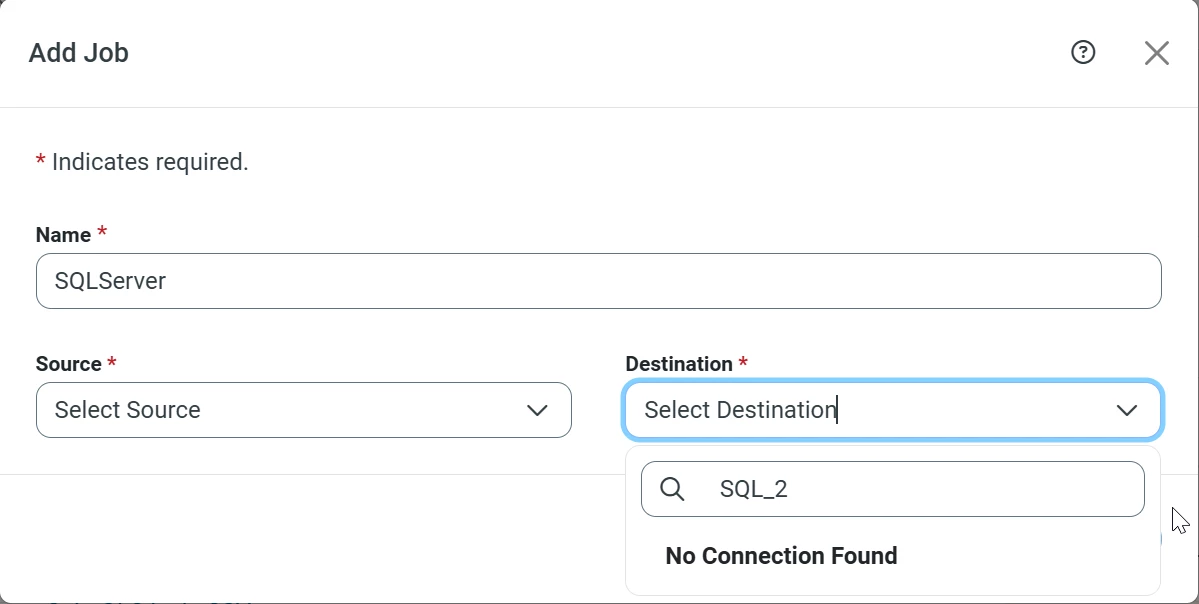
However, the same Connection does not appear when selecting a Destination:
What can be done to resolve this?
Best answer by matthewr
For some additional context on the behavior here, the SQL Server Source Connection and Destination Connection each use different SQL Server Connectors by default. The SQL Server Source Connection uses the CData SQL Server Driver; meanwhile, the SQL Server Destination Connection uses the native SQL Server connector. This means that by default, you will be unable to utilize the same SQL Server Source Connection as a Destination Connection.
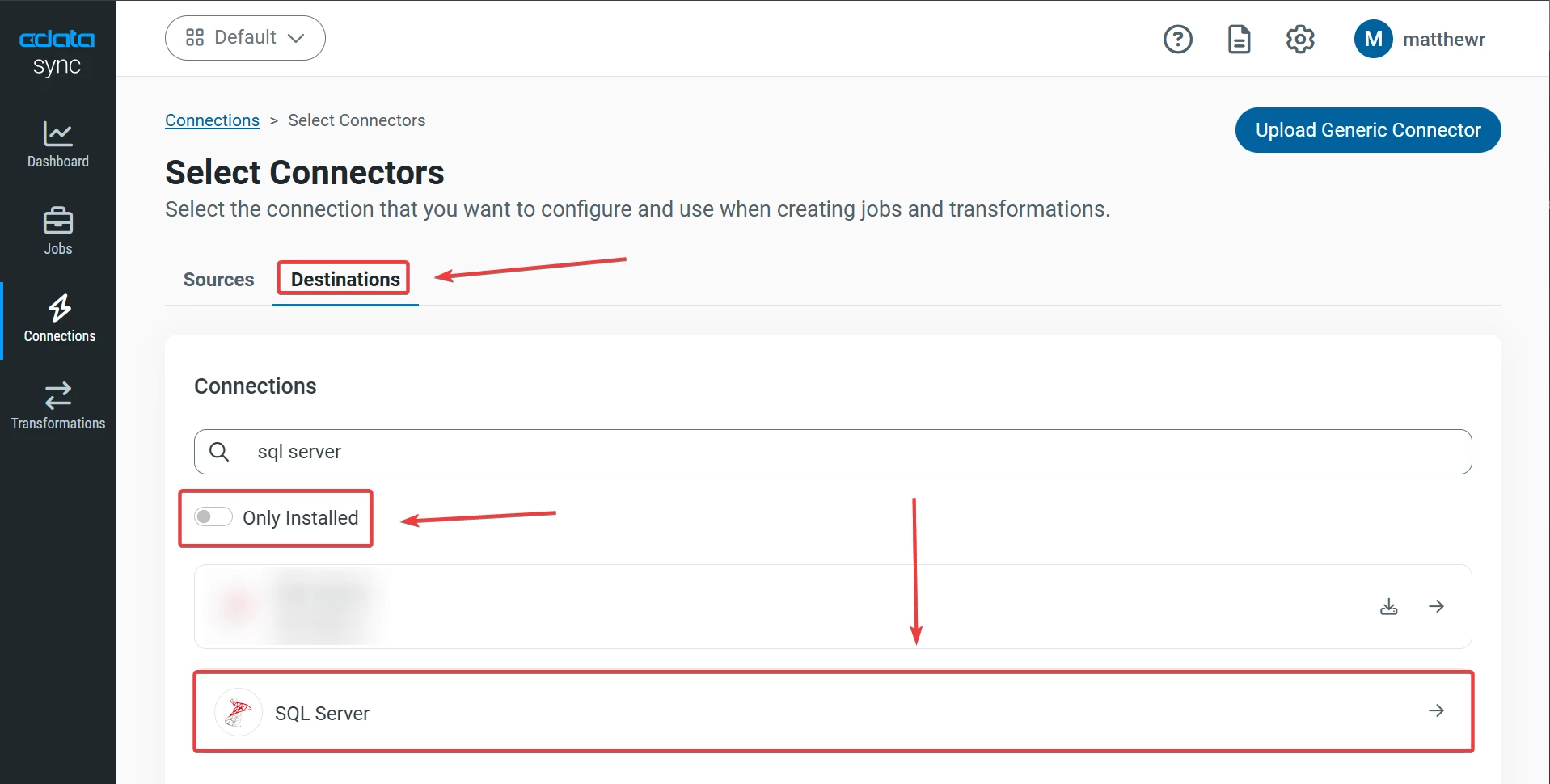
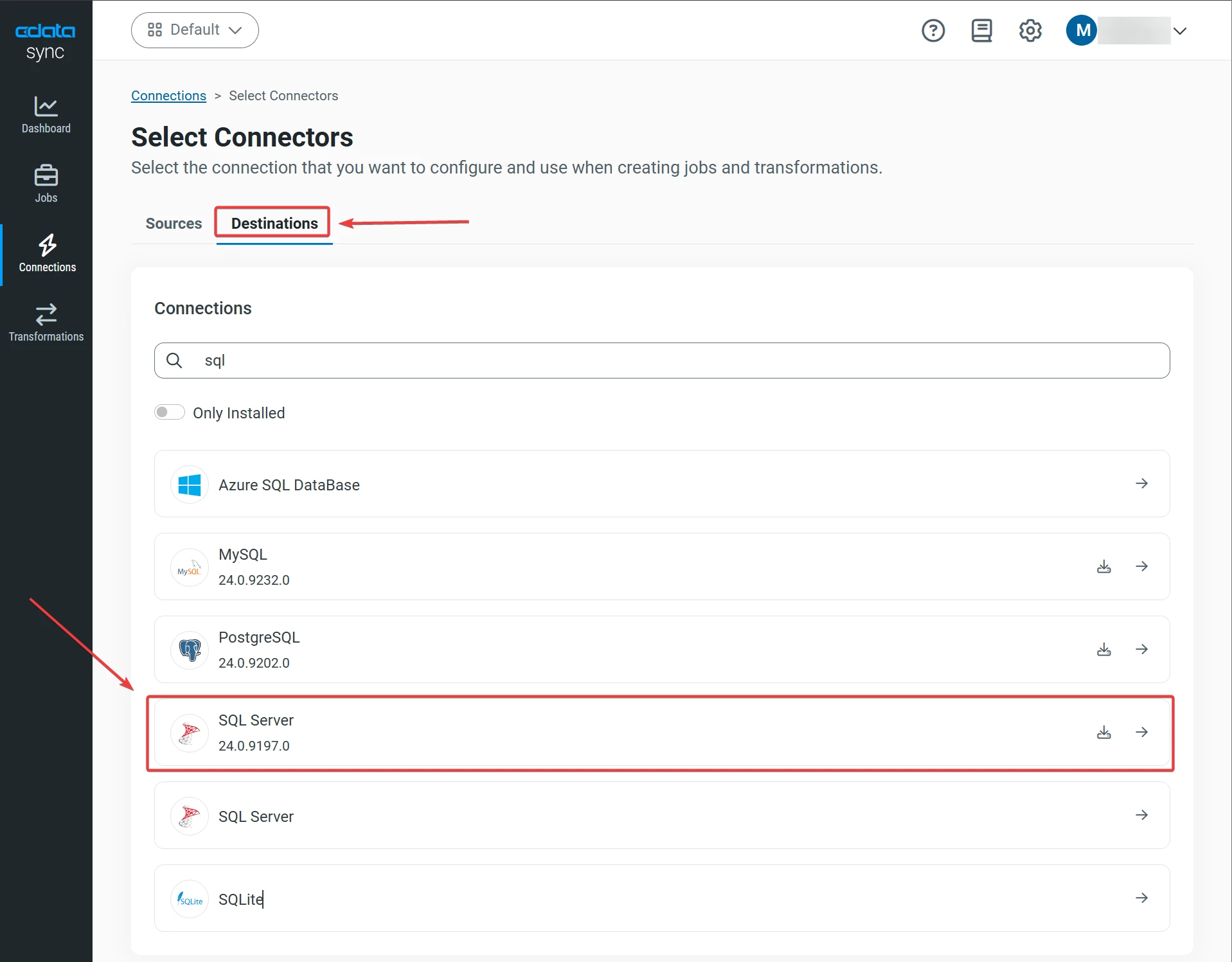
As a result, you may simply create a new Destination Connection using the native SQL Server connector within Sync to use your SQL Server database as a Destination. This can be accomplished by simply navigating to the Destinations tab in the Select Connectors window and selecting the "SQL Server" option:
However, if you do wish to utilize the same SQL Server Connection as both a Source and a Destination, this can be accomplished by exposing the CData SQL Server Driver as a Connector for Destination Connections.
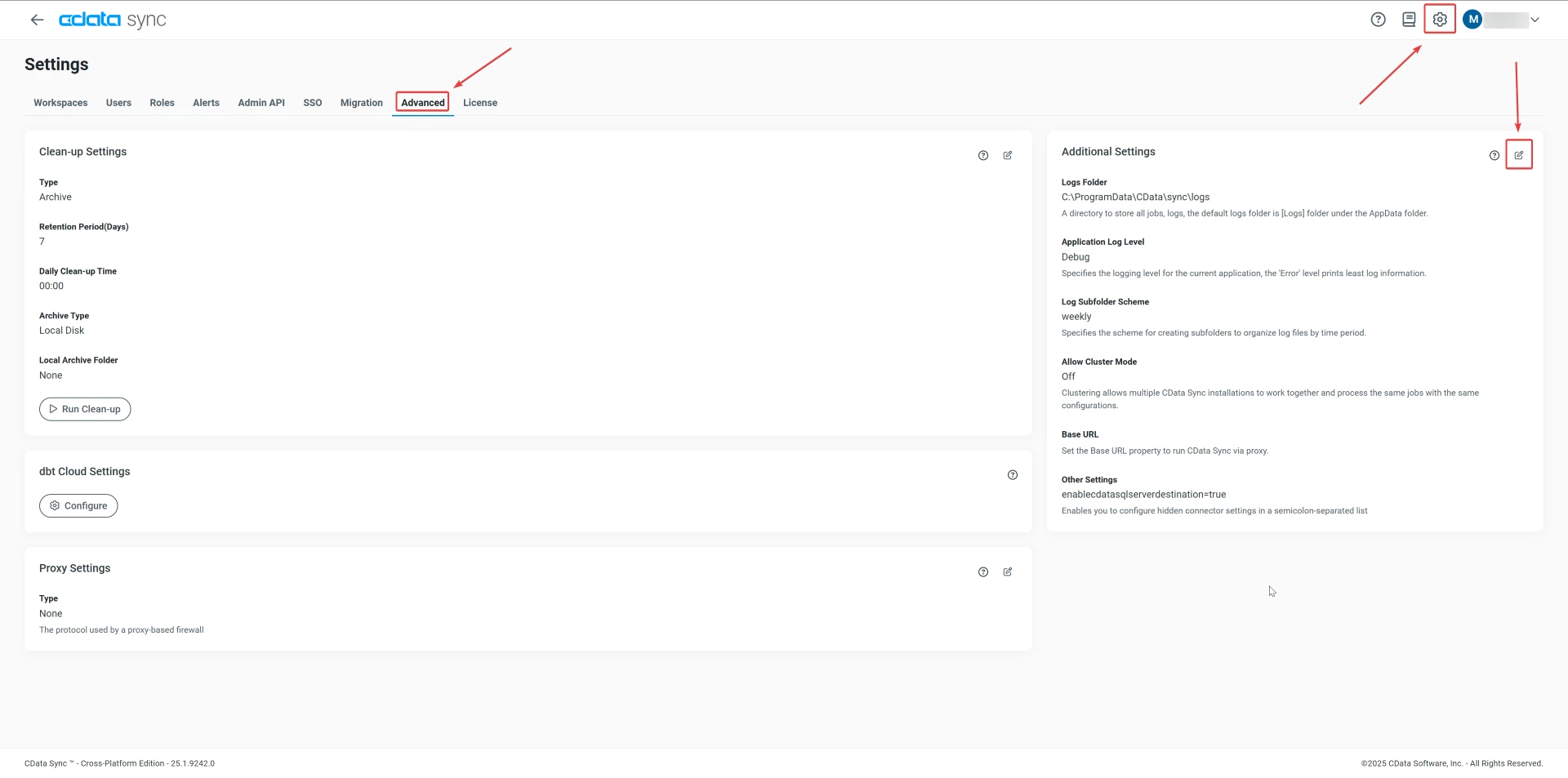
To do so, click the gear icon (Settings) in the top right corner of the Sync interface, navigate to the Advanced tab, and scroll down to the Additional Settings section. From there, click the Edit icon, as indicated in the screenshot below:
In the Additional Settings window that appears, copy and paste the following text into the "Other Settings" box:
enablecdatasqlserverdestination=true
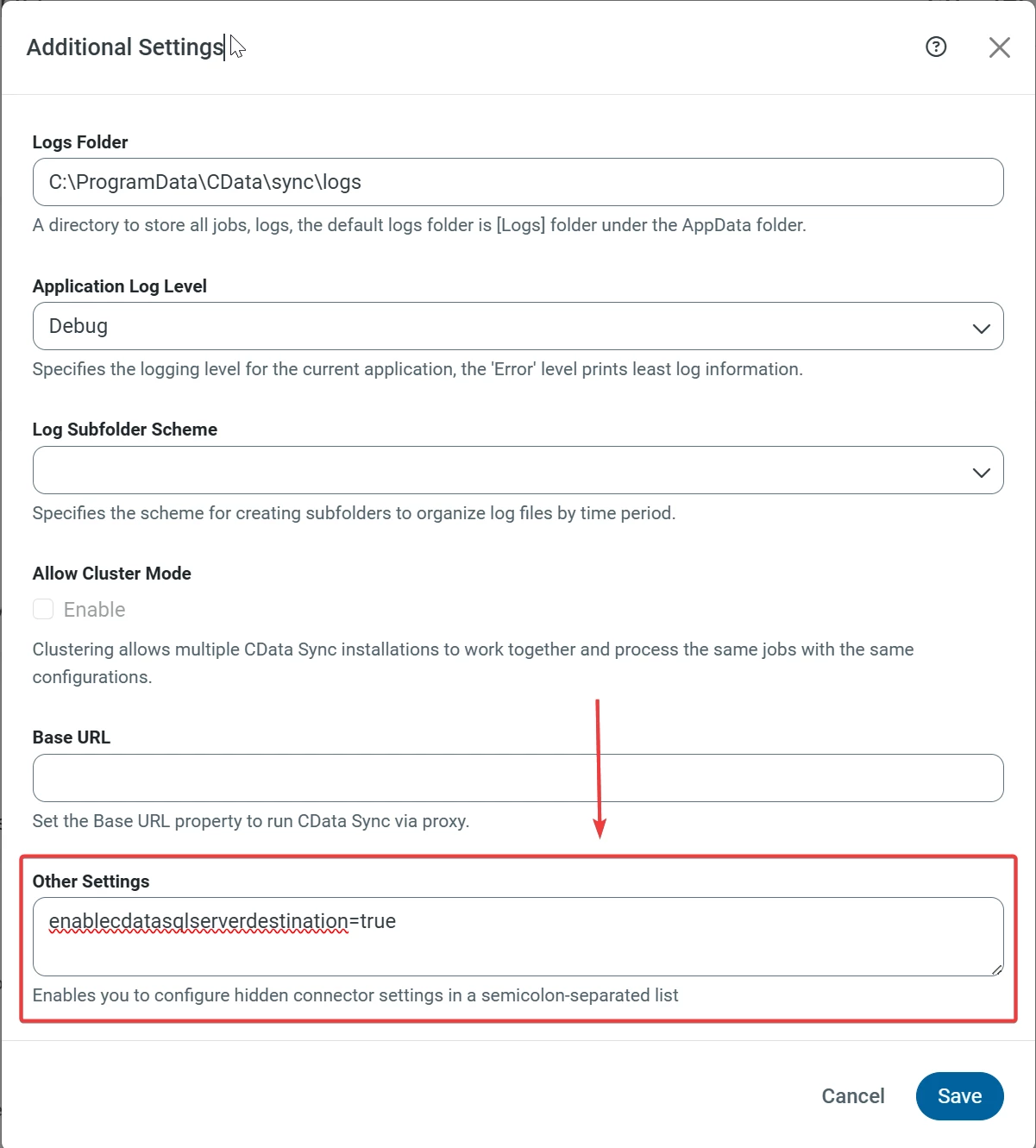
Once complete, your window should appear similar to the following:
Simply click the Save button to save your changes.
Once the changes have been saved, you should now see the option to add a Destination Connection to SQL Server using the CData SQL Server Driver as the Connector, as indicated in the screenshot below:
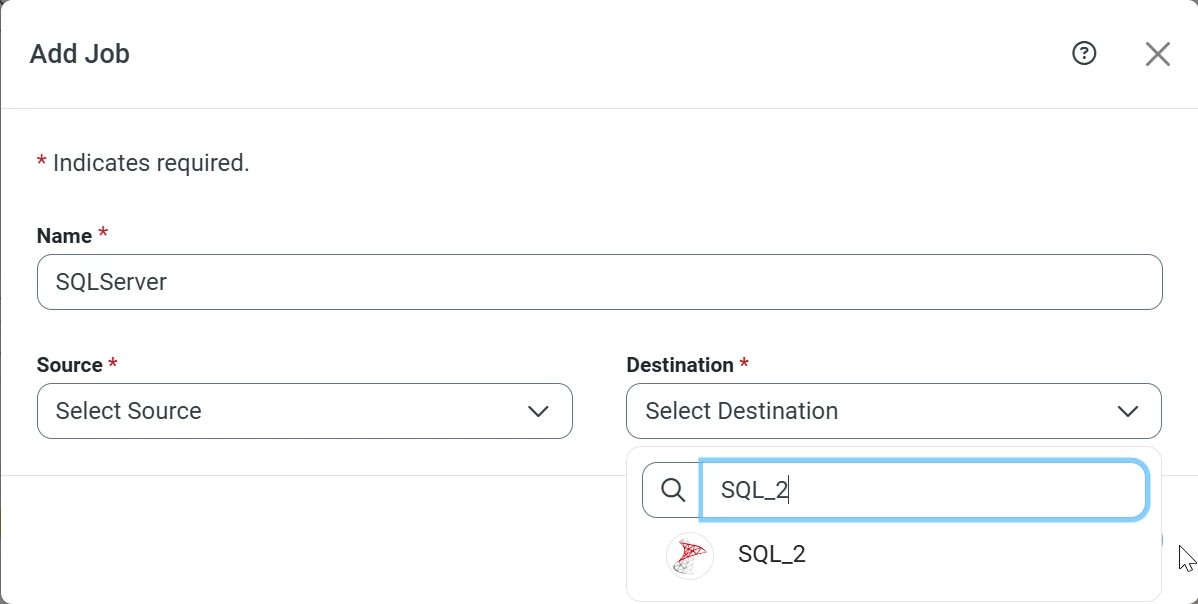
Now, any Connections made using the CData SQL Server Driver (Source or Destination) can be used as either a Source or Destination Connection within any Job:
If you have any additional questions regarding this or encounter more issues, please reach out to [email protected] for further assistance.
For some additional context on the behavior here, the SQL Server Source Connection and Destination Connection each use different SQL Server Connectors by default. The SQL Server Source Connection uses the CData SQL Server Driver; meanwhile, the SQL Server Destination Connection uses the native SQL Server connector. This means that by default, you will be unable to utilize the same SQL Server Source Connection as a Destination Connection.
As a result, you may simply create a new Destination Connection using the native SQL Server connector within Sync to use your SQL Server database as a Destination. This can be accomplished by simply navigating to the Destinations tab in the Select Connectors window and selecting the "SQL Server" option:
However, if you do wish to utilize the same SQL Server Connection as both a Source and a Destination, this can be accomplished by exposing the CData SQL Server Driver as a Connector for Destination Connections.
To do so, click the gear icon (Settings) in the top right corner of the Sync interface, navigate to the Advanced tab, and scroll down to the Additional Settings section. From there, click the Edit icon, as indicated in the screenshot below:
In the Additional Settings window that appears, copy and paste the following text into the "Other Settings" box:
enablecdatasqlserverdestination=true
Once complete, your window should appear similar to the following:
Simply click the Save button to save your changes.
Once the changes have been saved, you should now see the option to add a Destination Connection to SQL Server using the CData SQL Server Driver as the Connector, as indicated in the screenshot below:
Now, any Connections made using the CData SQL Server Driver (Source or Destination) can be used as either a Source or Destination Connection within any Job:
If you have any additional questions regarding this or encounter more issues, please reach out to [email protected] for further assistance.