

Single Sign-On (SSO) with Azure Active Directory (Azure AD) improves security, simplifies access management, and enhances the login experience for CData API Server users. By integrating Azure AD using the OpenID Connect (OIDC) standard, users can authenticate using corporate credentials while API Server securely validates identity tokens issued by Azure AD.
Overview
CData API Server supports Single Sign-On (SSO) via the OpenID Connect (OIDC) standard. Identity providers that implement OpenID, such as Azure Active Directory, can be configured as the SSO platform for API Server.
Once SSO is configured:
- Users are redirected to Azure AD for authentication
- Azure AD issues a signed JWT token
- API Server validates the token signature and issuer
- Users are authenticated using a Federation ID mapping
Note: Currently, API Server supports only individual users, not groups of users. If an SSO platform provides access for a group of users, each individual user within that group must be added as a user on the API Server Settings page in order to log in. Each user should reference the federation Id from the identity provider.
Configuration Overview
The configuration process consists of three main sections:
1. Configuring Azure Active Directory
2. Configuring SSO in CData API Server
2. Configuring Users in CData API Server
Section 1: Configuring Azure Active Directory
Step 1: Register an Application
1. Log in to the Azure Portal
2. Navigate to Azure Active Directory
3. Select App registrations and click New registration
4. Enter a name (for example, CData API Server)
5. Choose the appropriate supported account type
6. Under Redirect URI, configure:
https://<your_apiserver_host>:<port>/src/ssoCallback.rst
Example: http://localhost:8080/src/ssoCallback.rst
Note: Please check the localhost port as per your instance.
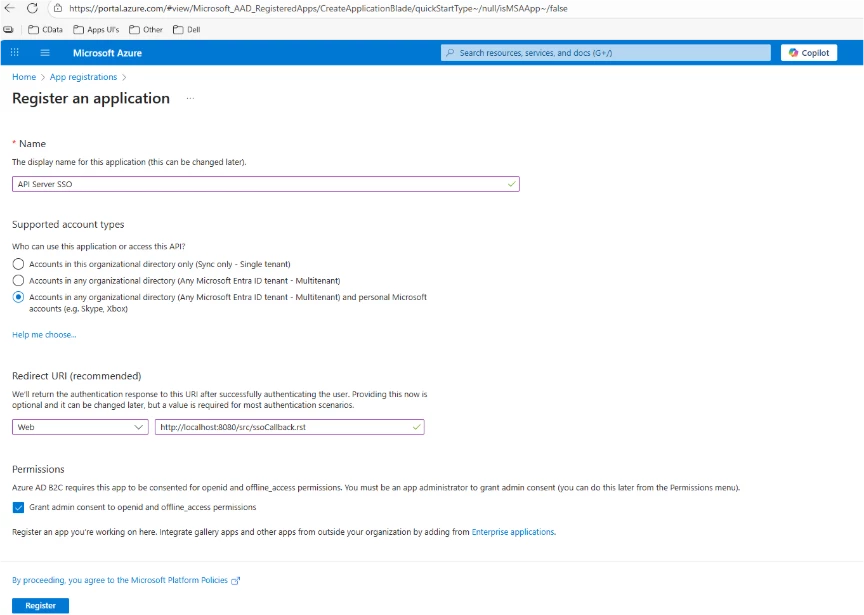
7. Click Register
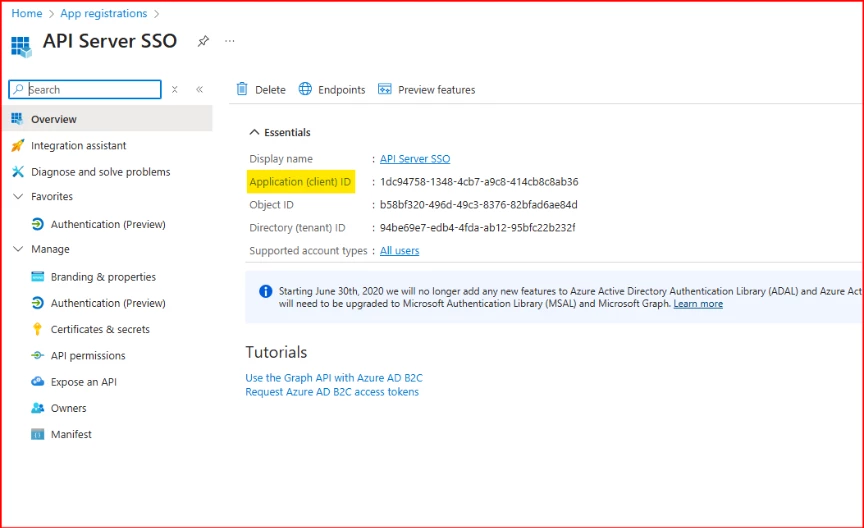
Step 2: Copy Application (Client) ID
After registration, copy the Application (Client) ID. This value is used in CData API Server as:
- Audience URI
- OAuth Client ID
Step 3: Generate a Client Secret
1. Navigate to Certificates & secrets
2. Click New client secret
3. Provide a description and expiration
4. Copy and securely store the client secret value
Important: This value is displayed only once and is required for OAuth configuration.
Step 4: Retrieve OpenID Metadata Document
1. Navigate to Endpoints in the Azure AD application
2. Copy the OpenID Connect metadata document URL
3. Replace 'common' with your Tenant ID
This URL will be used as the Import Settings URL in CData API Server.
Step 5: Copy User Object ID
1. Navigate to to Owners in the left pane of the window
2. Select the user who will access API Server
3. Click on owner to copy and save its Object ID.
This value will be used as the Federation ID in API Server.
Section 2: Configuring SSO in CData API Server
1. Navigate to Settings → SSO
2. Enable Single Sign On Settings
3. Click Configure
SSO Settings for Azure AD
Audience URIs:
- Azure AD Application (Client) ID
Key Claim:
- oid
OAuth Client ID:
- Azure AD Application (Client) ID
OAuth Client Secret:
- Azure AD Client Secret
Import Settings URL:
- Azure AD OpenID Metadata Document URL
(After setting the Import Settings URL, click the Import button. The system will automatically create the certificate and use it in the next setting, Issuer Certificate.)
Issuer Certificate:
- Automatically generated when you click the Import button (for example, SSOIssuerCertificate.cer) and used for SSO authentication.
Authorization URL:
- https://login.microsoftonline.com/<tenant-id>/oauth2/v2.0/authorize
Default Scopes:
- openid profile email offline_access
Token Issuer Identifier:
- https://login.microsoftonline.com/<tenant-id>/v2.0
Token Signature Algorithm:
- RS256
Token URL:
- https://login.microsoftonline.com/<tenant-id>/oauth2/v2.0/token
Logoff URL:
- https://login.microsoftonline.com/<tenant-id>/oauth2/v2.0/logout
Callback URL:
- https://<your_apiserver_host>:<port>/src/ssoCallback.rst
Save the configuration to complete the Azure AD SSO setup.
Section 3: Configuring Users in CData API Server
1. Open CData API Server
2. Navigate to Users
3. Click Add or use an Admin user.
4. Enter:
- Username: Azure AD user name
- Password: Any value (not used for SSO authentication)
- Role: As required
- Federation ID: Azure AD Object ID
5. Click Save and refresh the page
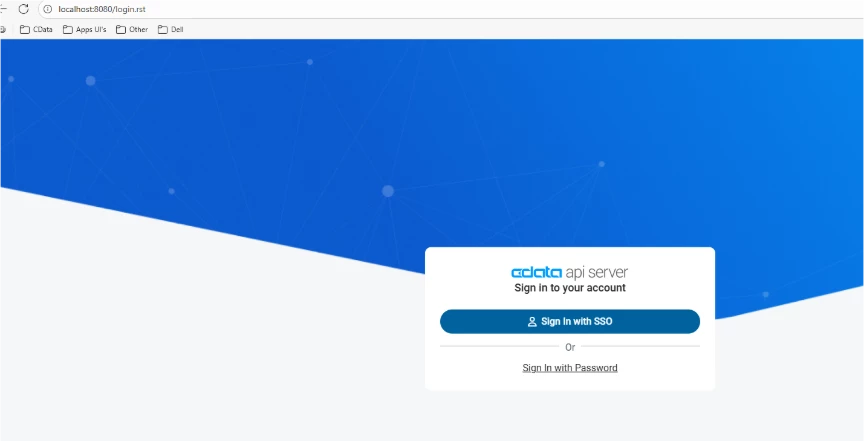
Verification
After configuration:
- The login page displays the SSO option
- Users are redirected to Azure AD
- Successful authentication redirects users back to API Server
Free Trial and Support
CData API Server is a lightweight web application that enables you to create and publish data APIs quickly, without the need for custom development. With the application’s intuitive point-and-click interface, you can easily configure access for popular clients such as Microsoft Power BI, Salesforce Lightning Connect, SharePoint External Lists, Microsoft Excel, Microsoft PowerPivot, and more. Available to install on-premises or in the cloud, the easy-to-use interface means that you can build and publish enterprise-ready REST APIs in minutes!
Start a free 30-day trial of CData API Server. If you have questions, the CData Support Team is available to assist.