
As with any software, there may be times where the behavior is different than expected. When this happens, we recommend that customers first take a look in the logs. The logs will capture errors and applicable information to see the behavior of CData Connect Cloud.
Logfiles are automatically generated as you use Connect Cloud and you can find them in the Logs section.
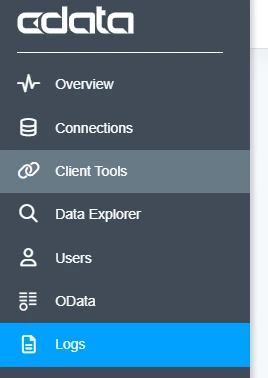
You will see many types of logs but the most important will be the Query Logs. This will include details about the queries that you issue and how they behave.
You can also view Audit Logs to see the activity in the Admin UI.
We recommend that when you run into an error to set Verbosity 3 to record ample troubleshooting details. In the Connection Configuration of the Connector, navigate to the subheading "Logging", you will find a setting for Verbosity, please set that to 3 so that the logs will have enough details for us to adequately troubleshoot.

Changing the Verbosity will only impact the connector level logging and will not collect any other information. When you have finished setting these properties, click “Save and Test” to save the settings.
Please recreate the error so that it is documented in the Logfile. Then find and download the corresponding Logs in the Logs menu.
If you require further assistance, please connect with us at [email protected] and we can issue a secure link to upload the logs and troubleshoot with you.