
This article explains LDAP authentication and how to set it up with an ApacheDS on-premises server.
What is LDAP?
LDAP (Lightweight Directory Access Protocol) is an open, vendor-neutral, industry-standard application protocol for accessing and maintaining distributed directory information services over an IP network. It's most commonly used for authentication, authorization, and storing user-related information in enterprise systems.
At its core, LDAP is a protocol: a set of rules that client and server systems follow to communicate with a directory service. A directory is a specialized database optimized for read-heavy access, structured in a hierarchical, tree-like form (like folders and subfolders).
The protocol enables applications and services to query, modify, and authenticate against directory-based data (like usernames, passwords, email addresses, user groups, devices, etc.).
What is a Directory Service?
A directory service is a central repository that stores and organizes data to allow for easy lookup. Think of it like a phonebook for computers and users.
Examples:
- Microsoft Active Directory (AD)
- OpenLDAP (open-source LDAP implementation)
- ApacheDS (Java-based LDAP server)
- Novell eDirectory
How Does LDAP Work?
LDAP follows a client-server model:
- The LDAP client sends a request (e.g., to authenticate a user).
- The LDAP server processes the request and responds with results.
Common Use Cases of LDAP:
Authentication and Authorization: Centralized login system for users across systems (e.g., enterprise logins).
Directory Services: Storing and retrieving hierarchical data (e.g., employee contact information).
Single Sign-On (SSO): Integrating with identity providers and SSO platforms.
Access Control: Granting role-based access based on LDAP group membership.
LDAP Structure (Key Concepts):
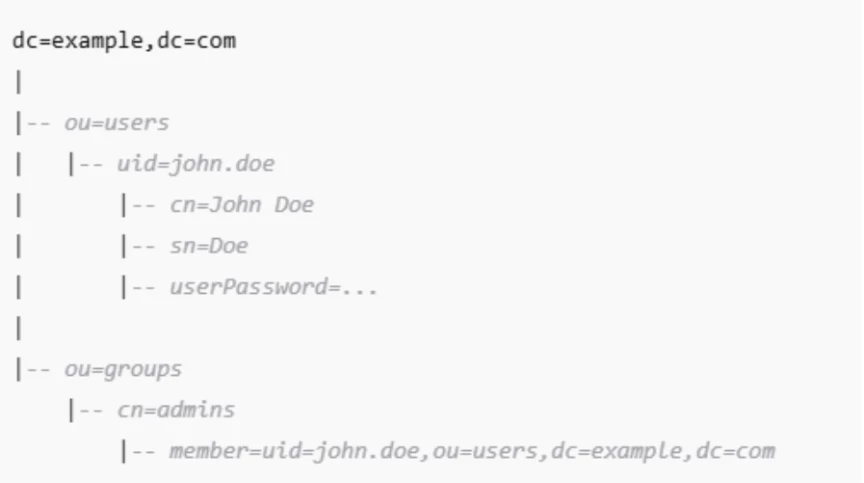
LDAP stores data in a hierarchical tree structure:
Entries: Basic unit of information, identified by a Distinguished Name (DN).
Attributes: Key-value pairs describing the entry (e.g., uid, cn, sn, mail).
Object Classes: Define the schema for entries, including required and optional attributes.
Example Structure:
LDAP and Authentication:
LDAP is often used to centralize user authentication, enabling single sign-on (SSO) or unified credential systems. Applications authenticate against the LDAP server instead of managing their own user stores.
Example Authentication Flow:
1) A user logs into an application.
2) The app connects to the LDAP server and sends a Bind request with the user's DN and password.
3) If the credentials are valid, the server responds with success; otherwise, failure.
Now I will explain the steps to configure LDAP authentication within CData Sync using ApacheDS, a freely available LDAP server.
Set Up ApacheDS Server
Step 1: Download and Install ApacheDS
1) Go to the official site: https://directory.apache.org/apacheds/
2) Download the latest installer for your OS (Windows, macOS, or Linux).
3) Run the installer and follow the prompts to complete the installation.
Step 2: Start ApacheDS Service
Once installed, start the ApacheDS server using the Manage ApacheDS (management GUI) app or by launching the service.

Step 3: Install Apache Directory Studio (Management Tool)
1) Download from: https://directory.apache.org/studio/
3) Install and open the Studio.
3) Create a new connection:
3.1 Hostname: localhost
3.2 Port: 10389 (default)
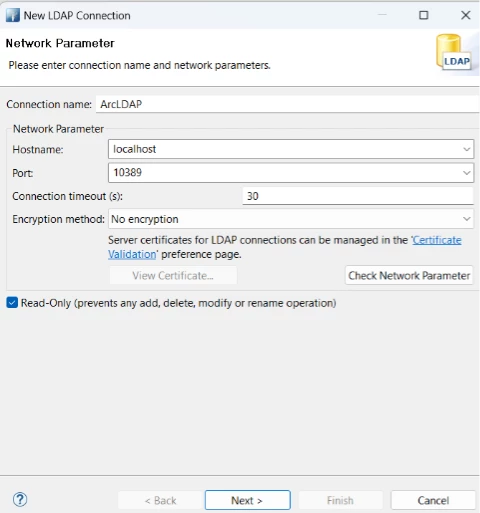
3.4 Click on Check Network Parameter. If success, then Click on Next.
3.5 Bind DN or user: uid=admin,ou=system
3.6 Password: secret (default unless changed)
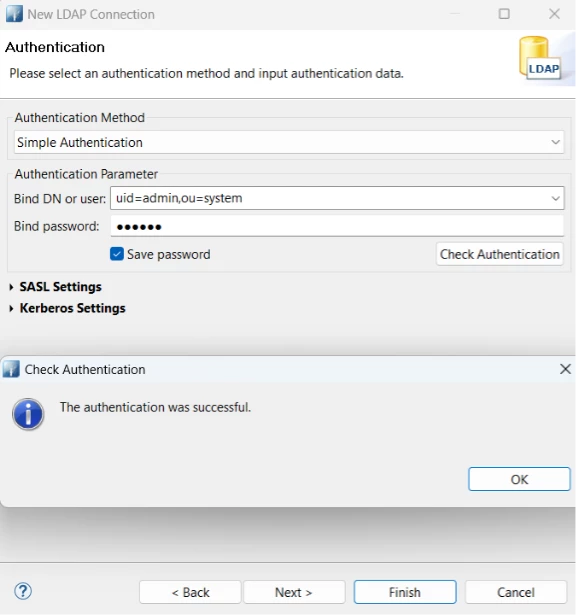
You’ll now be connected to the LDAP directory.
Step 4: Create LDAP Entries (Users/Groups)
Create a Base DN
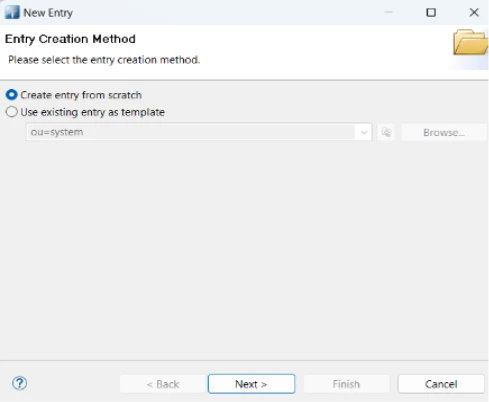
1) Right-click on the LDAP browser → New Context Entry
2) Choose "Create entry from scratch"
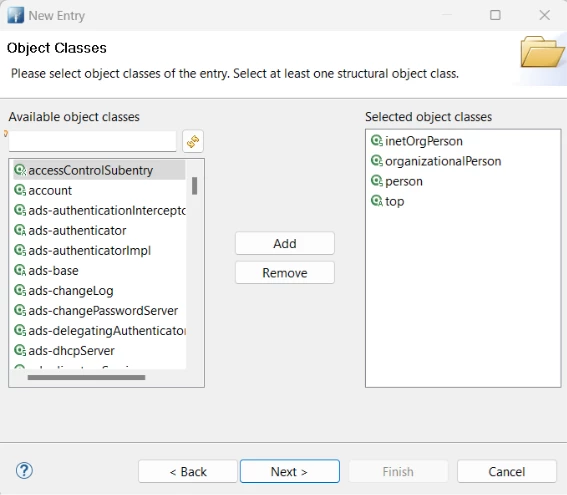
3) Use object classes:
3.1 top
3.2 person
3.3 inetOrgPerson
3.4 organizationalPerson
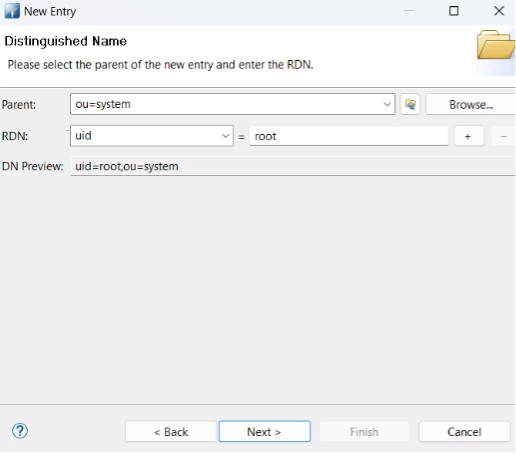
4) Provide domain components:
4.1) Set Parent: ou=system
4.2) RDN: uid = root
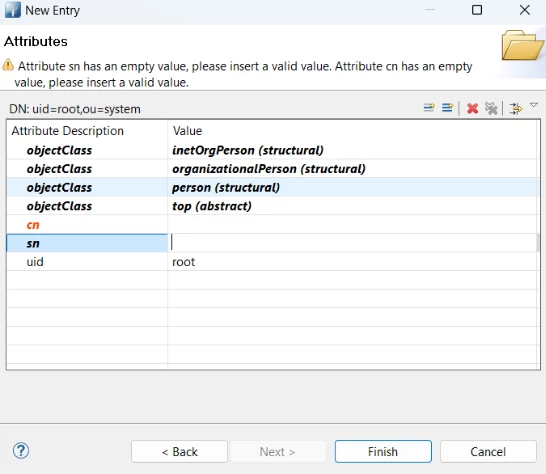
5) On the final step (attributes), enter manually:
5.1 cn = Test User
5.2 sn = User
5.3 userPassword = root
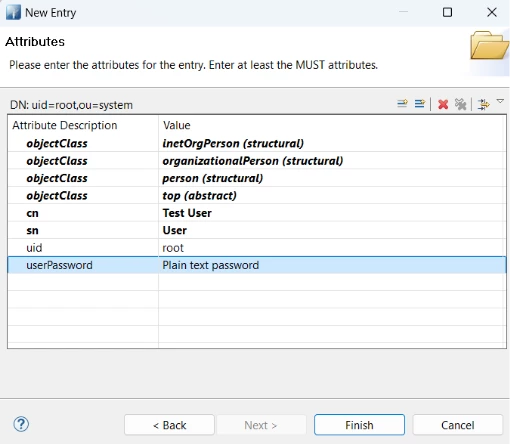
Then click Finish.
Add Organizational Units:
1) Create ou=users and ou=groups under the base DN:
2) Right-click dc=example,dc=com → New → New Entry
3) Use object class: organizationalUnit
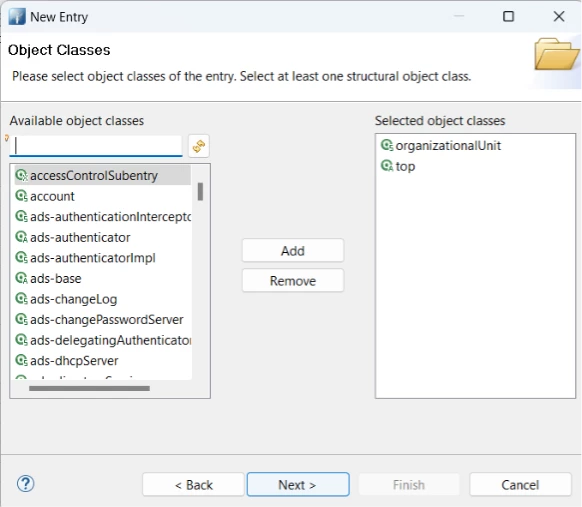
4) Add ou=users and ou=groups
5) Click on finish.
Add a Test User:
1) Right-click ou=users → New → New Entry
2) Choose object classes: inetOrgPerson, organizationalPerson, person, top
3) Attributes example:
3.1 uid: jdoe
3.2 cn: John Doe
3.3 sn: Doe
3.4 mail: [email protected]
3.5 userPassword: password123 (make sure to encode as plain or MD5)
Set up CData Sync to use LDAP authentication.
Step 1: Enable Authentication in CData Sync
1) Open CData Sync
2) The following steps configure sync to use LDAP to authenticate users if you use the embedded jetty server.
Step 2: Configure LDAP Authentication via sync.properties
3) If the sync.properties file does not already exist in the Sync installation directory, generate it using the following command:
java -jar sync.jar -GenerateProperties
4) The following mandatory setting instructs the embedded Jetty server to use LDAP for authentication:
;; LDAP
cdata.loginService.ldap.enabled=true
This setting instructs the embedded Jetty server to use LDAP for user authentication.
5) Include the minimum required properties based on your LDAP server setup. At a minimum, Sync requires:
cdata.loginService.ldap.hostname
cdata.loginService.ldap.bindDn
cdata.loginService.ldap.bindPassword
6) You may also configure additional optional properties as needed. Below is a full list of available settings:
cdata.loginService.ldap.userIdAttribute
cdata.loginService.ldap.debug
cdata.loginService.ldap.forceBindingLogin
cdata.loginService.ldap.bindPassword
cdata.loginService.ldap.roleMemberAttribute
cdata.loginService.ldap.useLdaps
cdata.loginService.ldap.roleBaseDn
cdata.loginService.ldap.bindDn
cdata.loginService.ldap.userPasswordAttribute
cdata.loginService.ldap.hostname
cdata.loginService.ldap.userRdnAttribute
cdata.loginService.ldap.roleObjectClass
cdata.loginService.ldap.port
cdata.loginService.ldap.authenticationMethod
cdata.loginService.ldap.userBaseDn
cdata.loginService.ldap.contextFactory
cdata.loginService.ldap.userObjectClass
cdata.loginService.ldap.roleNameAttribute
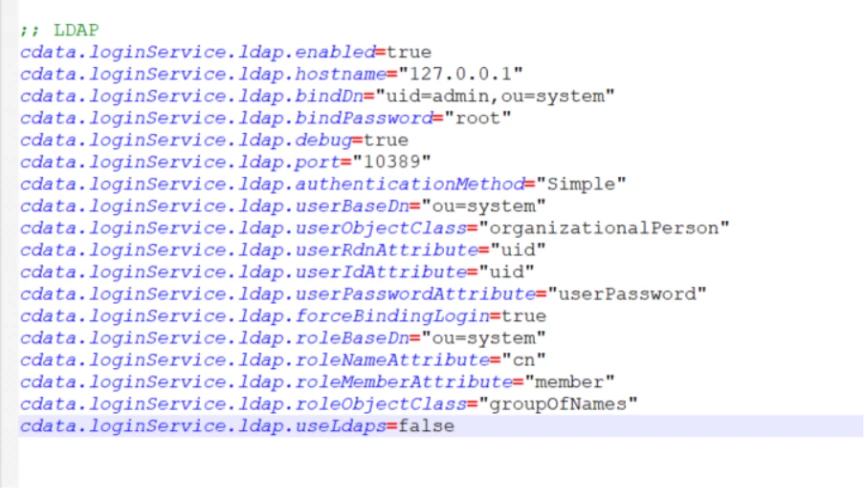
7) Here’s an example configuration section for a local ApacheDS LDAP server that I have configured at my end:
;; LDAP
cdata.loginService.ldap.enabled=true
cdata.loginService.ldap.bindDn=uid=root,ou=system
cdata.loginService.ldap.hostname=127.0.0.1
cdata.loginService.ldap.bindPassword=root
cdata.loginService.ldap.port=10389
cdata.loginService.ldap.debug=true
cdata.loginService.ldap.authenticationMethod=Simple
cdata.loginService.ldap.userBaseDn=ou=system
cdata.loginService.ldap.userObjectClass=organizationalPerson
cdata.loginService.ldap.userRdnAttribute=uid
cdata.loginService.ldap.userIdAttribute=uid
cdata.loginService.ldap.userPasswordAttribute=userPassword
cdata.loginService.ldap.forceBindingLogin=true
cdata.loginService.ldap.roleBaseDn=ou=system
cdata.loginService.ldap.roleNameAttribute=cn
cdata.loginService.ldap.roleMemberAttribute=member
cdata.loginService.ldap.roleObjectClass=groupOfNames
cdata.loginService.ldap.useLdaps=false
Step 3: Add LDAP Users in CData Sync
To allow LDAP-authenticated users to log in, their usernames must also exist in Sync's internal user list. To add them:
1) Log in to Sync as an administrator.
2) Go to the gear icon (⚙️) → Users.
3) Add each LDAP user with the exact same username as in your LDAP directory.
For example, if your LDAP server has users user01 and user02, ensure these same users are added in Sync.
Once done, you can stop the application.
Step 4: Test the Configuration
Once you have created the sync.properties file with the necessary LDAP settings, added your LDAP users to Sync, and confirmed that their configuration is correct based on your LDAP server’s requirements, you are ready to test the functionality.
Start Sync using java -jar sync.jar or as a service. When the login screen appears, enter a username and password for an LDAP user you've also added in Sync.
Sync will:
1) Match the input username against its internal user list.
2) Authenticate the credentials against your LDAP server.
If everything is configured correctly, the user will be logged into the application. If login is successful, you are now using ApacheDS for authentication.