
Configuring SAML-Based Single Sign-On (SSO) with Microsoft Entra ID for CData Sync
With SAML-based Single Sign-On (SSO), users can seamlessly authenticate through their organization’s identity provider (IdP), enabling secure, centralized access and just-in-time user provisioning at the time of login.
This guide explains how to configure Microsoft Entra ID (formerly Azure Active Directory) as the SAML 2.0 identity provider for CData Sync, providing a unified, enterprise-grade authentication experience.
Configuring Microsoft Entra ID SSO Authentication in CData Sync:
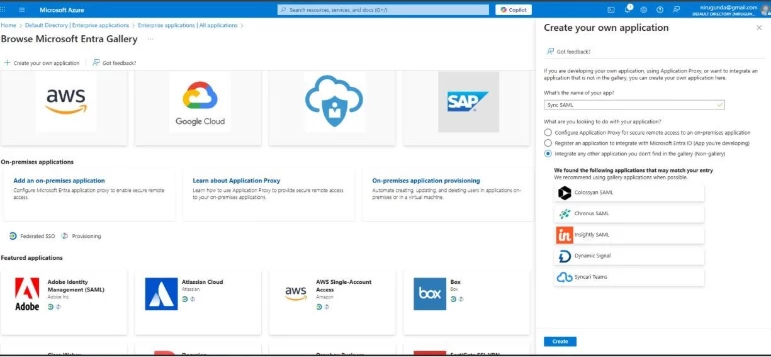
Step 1: Create an Enterprise Application in Microsoft Entra ID
-
Log in to the Azure Portal: https://portal.azure.com
-
Navigate to:
Microsoft Entra ID > Enterprise applications > New application
-
In the Create your own application window:
-
Name: Sync SAML (or a name of your choice)
-
Option: Integrate any other application you don’t find in the gallery (non-gallery)
-
Click Create
Step 2: Configure SAML as the Sign-on Method
-
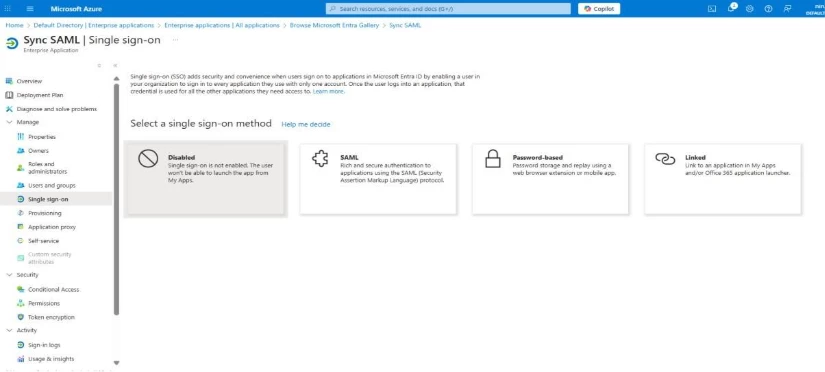
Once the application is created, go to:
Enterprise Applications > [Your Application] > Overview
-
Click Single sign-on in the left menu.
-
Select the SAML method.
Step 3: Retrieve SAML Configuration Details from CData Sync
-
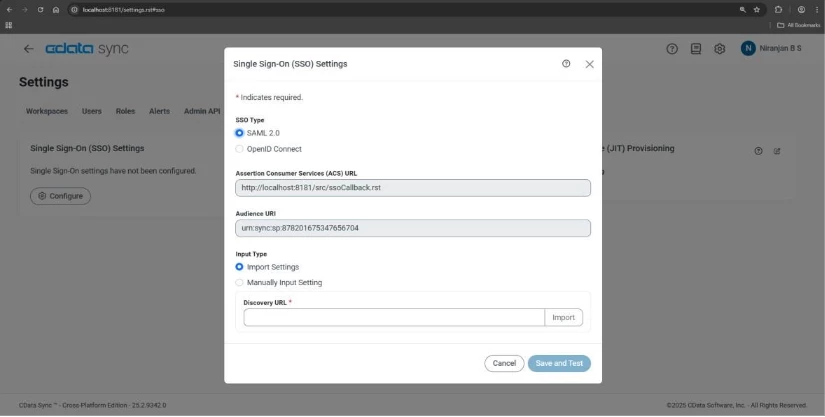
Log into CData Sync as an administrator.
-
Navigate to: Settings > SSO > Configure
-
Choose SAML 2.0 as the protocol.
-
Copy the following values:
-
ACS URL (Assertion Consumer Service URL)
-
Audience URI (Entity ID)
Step 4: Configure Basic SAML Settings in Entra ID
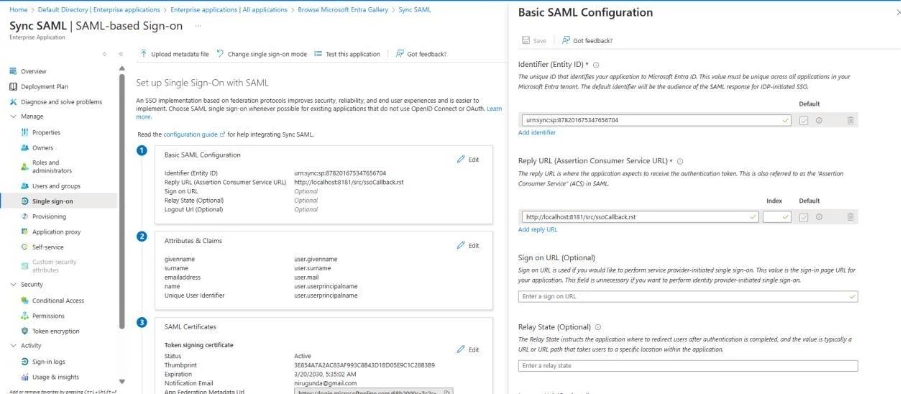
In the Azure portal under Basic SAML Configuration:
-
Enter the values gathered from Cdata Sync:
-
Identifier (Entity ID): Paste the Audience URI
-
Reply URL (ACS URL): Paste the ACS URL
-
Click Save to apply your changes.
Step 5: Import Microsoft Entra Metadata into CData Sync
-
In CData Sync go to Settings > SSO
-
Paste the App Federation Metadata URL from Azure into the Discovery URL field.
-
Click Import to automatically populate the SAML configuration fields.
-
Click Save and Test.
-
You’ll be redirected to the Microsoft Entra ID login page.
-
Sign in using your organizational credentials.
-
Upon success, a confirmation message will appear:
“Test SSO Successful.”
Step 6 (Optional): Add a Federation ID to a CData Sync User
-
Copy the Federation ID from the SSO configuration page in CData Sync.
-
Navigate to Settings → Users.
-
Click Edit on the target user account.
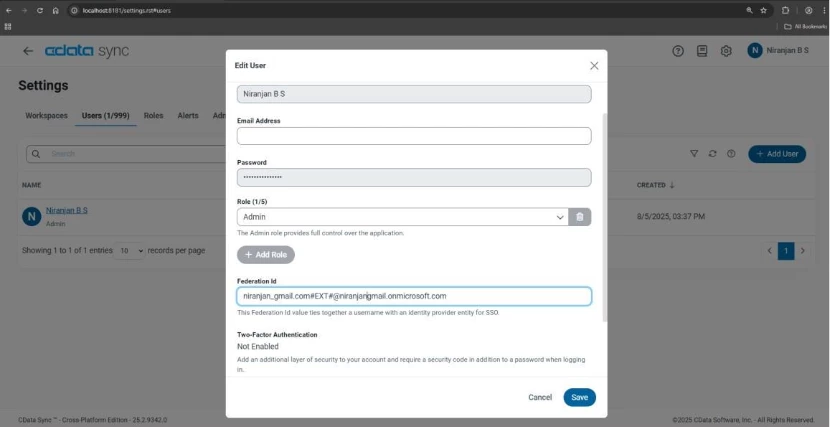
4. Paste the Federation ID and click Save.
By integrating CData Sync with Microsoft Entra ID via SAML 2.0 SSO, organizations gain a secure, streamlined authentication model that simplifies user management and enhances compliance.