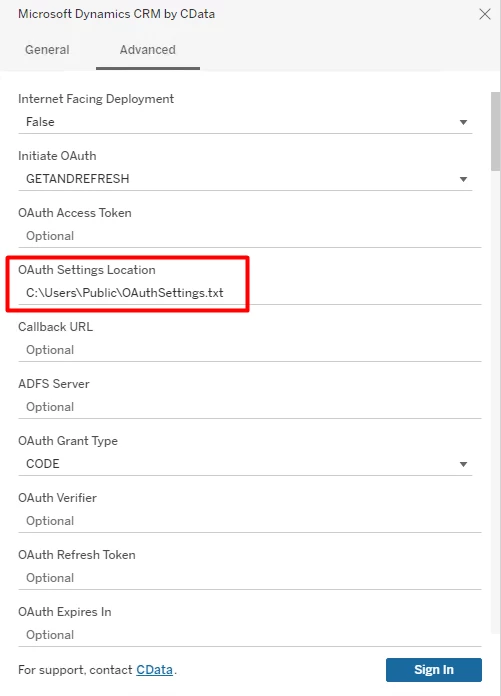
Tableau Server does not have permission to redirect you to the browser. To fix this issue we are going to use the .jar file. Please follow the steps (I will be using the DynamicsCRM provider as an example).
Go to C:\Program Files\CData\CData Tableau Connector for Microsoft Dynamics CRM 2022\lib and run the cdata.tableau.dynamicscrm.jar file. To do so, open your PowerShell and write these commands:
-
cd "C:\Program Files\CData\CData Tableau Connector for Microsoft Dynamics CRM 2022\lib"
-
java -jar .\cdata.tableau.dynamicscrm.jar
Fill in the required information and change the OAuthSettingsLocation to an accessible location, for example, C:\Users\Public\OAuthSettings.txt.
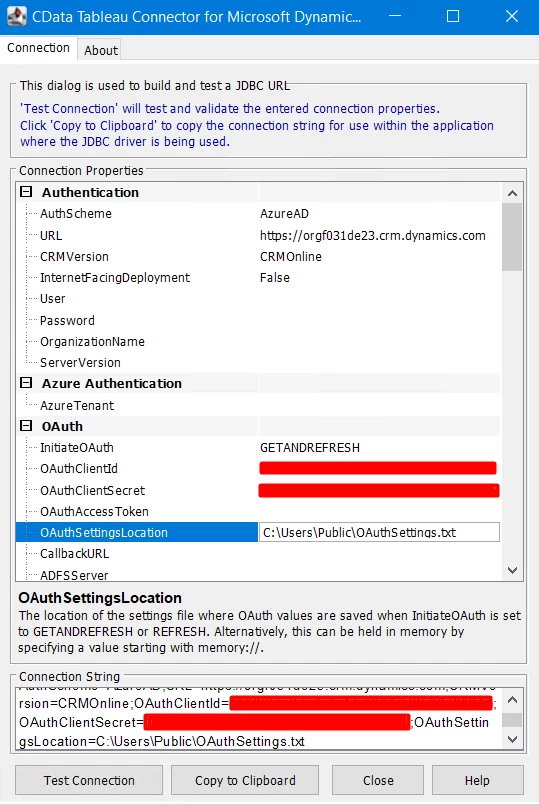
After clicking Test Connection, this method will redirect you to the browser and you be able to grant access. A file called OAuthSettings.txt will also be created in the C:\Users\Public path.
To access your data, you can open the Tableau Server and provide the necessary information. Remember to specify the identical path in the OAuth Settings Location as the one in the .jar file, which in this case is C:\Users\Public\OAuthSettings.txt. This will enable the driver to use the existing connection and grant you access to your data.