

Private key certificates are used in AS2 and other MFT protocols to allow for secure elements of MFT transfers – notably, data encrypted with the matching public key certificate can be decrypted with the private key certificate, and messages signed with the private key certificate can be verified with the matching public key.
In any protocol that uses private and public key pairs, both parties to the transaction will need to be updated if a certificate is replaced, because trading partners that exchange messages with the owner of the private key will need to obtain and install the matching public key from the partner.
One thing that you will notice with certificates issued this way is that they have a built-in expiration date:
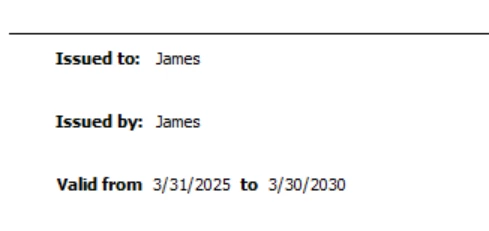
While, in theory, this validity period can be any validity period chosen by the issuer, in practice it is common to issue a certificate in the range of 1 to 5 years, depending on the security policy of the issuer.
When it comes time to replace your private key certificate, you will need to provide your partners with the matching public key certificate when you begin using your new private key certificate, so that operations that you perform with the private key certificate or operations that your partner performs with your public certificate match. This article will provide tips on how to approach this to update your partners in advance and make this process as seamless as possible:
-
Create your new certificate in advance
-
Share the new public key with your trading partners and announce a cutover date
-
Keep your old certificate as a rollover certificate when cutting over
Creating a new certificate without configuring it:
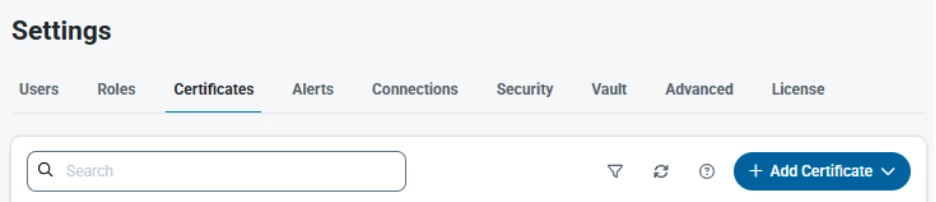
In the Settings (cogwheel)->Certificates section of the application, you can click on the +Add Certificate button to create a new certificate:
You will then see a new dialog box prompting you for the fields for the new certificate to create:
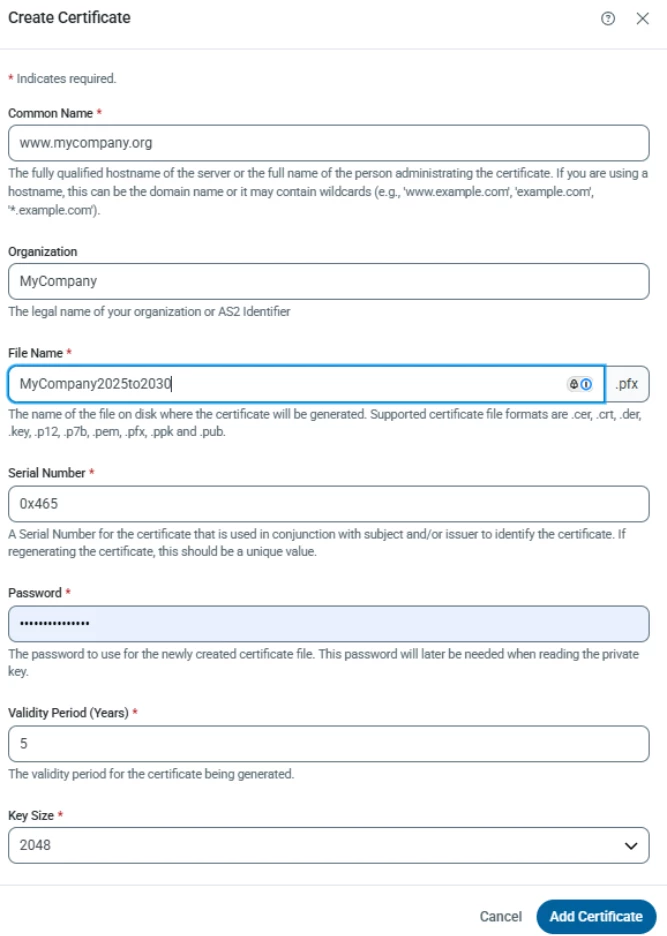
At a minimum, you need the Common Name and password for the new certificate, but the following tips are recommended:
-
Most commonly, the Organization is a match for your identity in the AS2 profile. The Common Name is often used for SSL/TLS certificates and matches the domain name you’re hosting on, but in most cases, it is not important that this match your domain.
-
It is recommended that you choose a filename that makes it easy to identify the owner of the certificate and its validity period, so it’s easy to tell apart from earlier iterations. Plugging the expiration or issue date into the name is a good approach.
-
Note that the default Serial Number is coded to the hexidecimal equivalent of the 2 digit month and 2 digit year of the current time (the date the above image was captured is November 2025). It’s recommended that you stick with this or come up with your own unique convention for the serial number. If you’re replacing a certificate that was previously issued, it is not recommended that you use the exact same combination of subject and serial number, as some parties may have trouble distinguishing your new certificate from your old one if both identifiers are the same.
-
You can choose any validity period that works with your security policy. The only way to compromise a private key that is securely protected is through brute force attack, but the longer that interval you use that certificate, the more likely that is that a dedicated attacker is able to compromise your key. Certificates are intended to be replaced regularly as part of the protocol, so use your judgement here.
-
Remember the password that you provide. It will be needed later when you configure that certificate.
When you’re done, you’ll notice that two certificates were created, one private key (pfx) and one public key (cer):

You can download the .cer file and begin sharing it with your partners.
Share the new public key with your trading partners and announce a cutover date
It is recommended that you choose a date in advance and use that date to begin switching to the new certificate. If you are using this certificate to replace one that is about to expire, you will be notified in advance of that expiration date so you can plan ahead.
You can share the new .cer file with your partner directly as an email attachment, or if you are publishing your profile in CData Arc via the Publish AS2 Profile Settings setting in your AS2 profile:
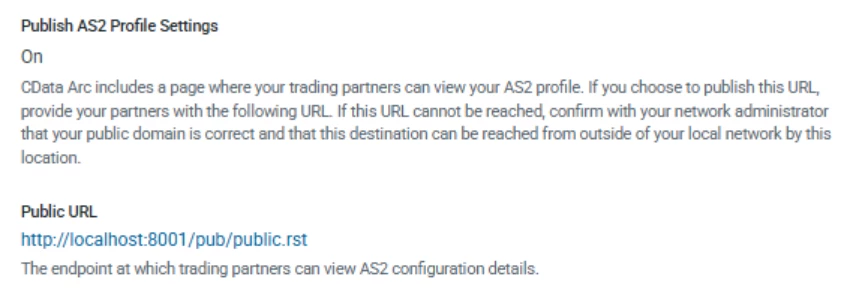
You can simply update your Public Certificate:
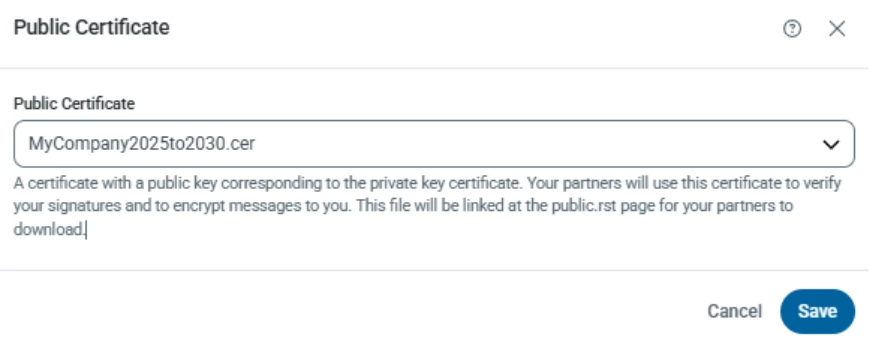
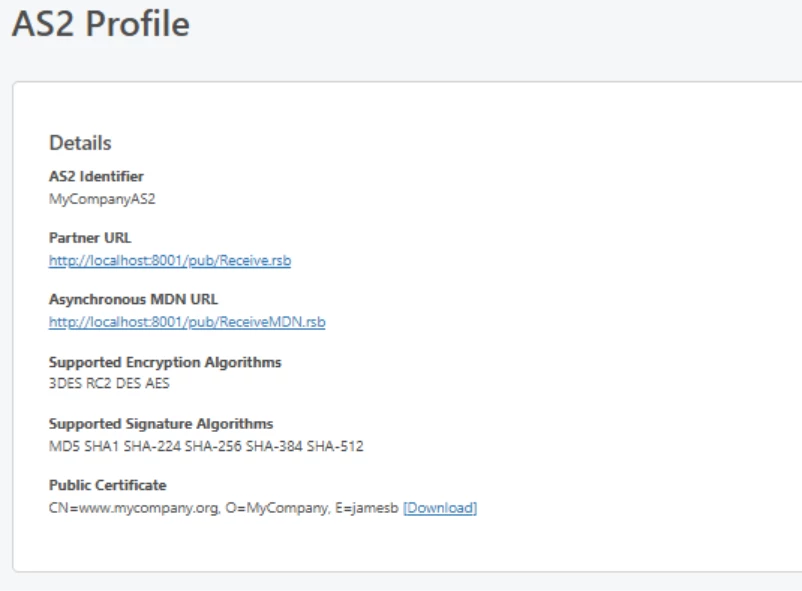
And that will be then available for download when you refresh the Public page:
NOTE: In normal cases, the private key certificate that is used in each connection is the Personal Certificate in the Profiles->AS2 Profile, but it is possible to override this on a per connection basis in an individual AS2 connection in the Advanced->Alternate Local Profile for that connector:
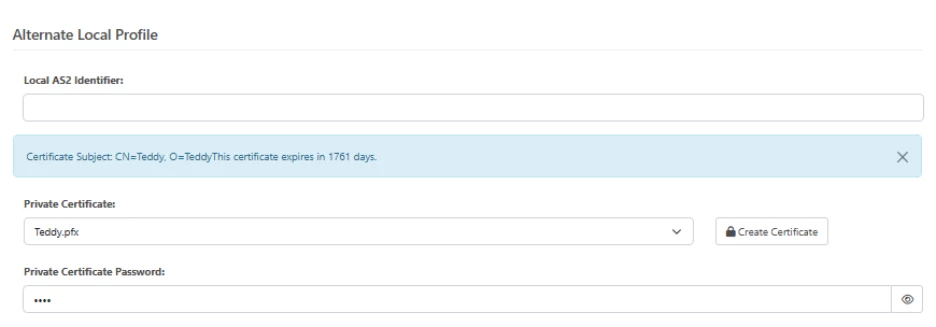
If you have any certificate present in this selection, note that if you update your Personal Certificate in the AS2 Profile, the application will continue to use your Alternate Local Profile until you clear it. If you have a partner that you have an Alternate Local Profile certificate configured that you wish to sync up to your new certificate, be sure to clear the Alternate Local Profile -> Private Certificate section when cutting over to the new certificate.
In general, Alternate Local Profile should only be used in multitenant setups (where you maintain multiple local identities with different private keys for each), or in cases where you need to revert a partner to an earlier certificate (we will touch on this again in the troubleshooting section below) because it can be easy to lose track of certificates overridden in this section. If you have an Alternate Local Profile->Personal Certificate that already matches your AS2 Profile->Private Certificate, that field can be cleared now, since there is no difference.
At the cutover date, begin using the new certificate, and retain your previous certificate as a Rollover Certificate
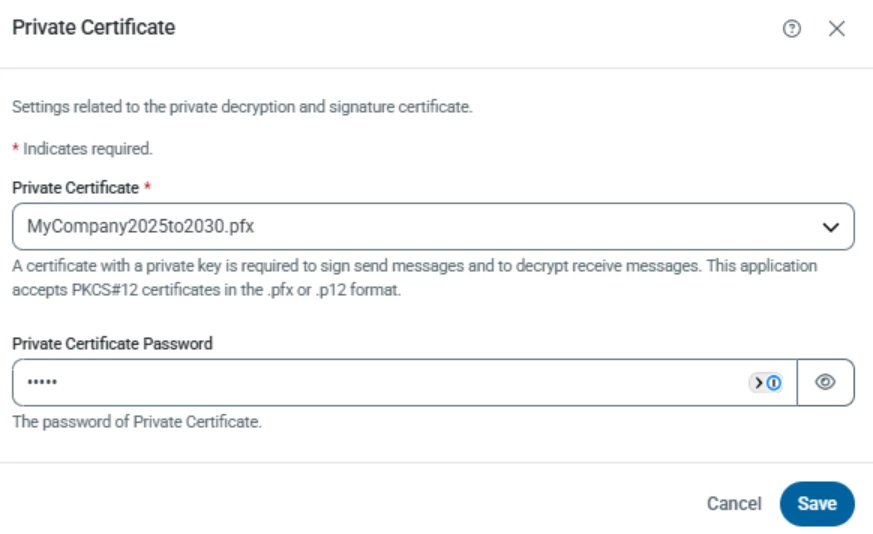
At the time of the changeover, begin using the new certificate by configuring it in the AS2 Profile->Private Certificate:
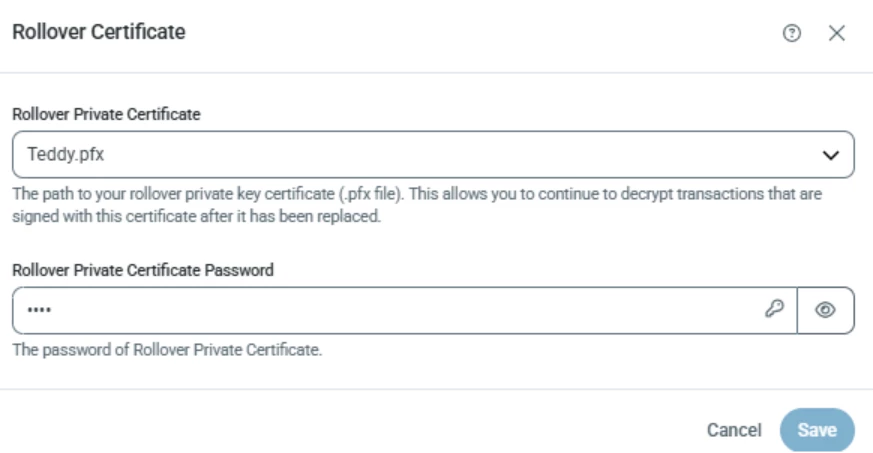
At the same time, take the certificate that you were using, and reconfigure it as the Rollover Certificate:
How the Rollover Certificate field is used
CData Arc uses private key certificates for two operations in AS2 (as well as other protocols):
-
To sign outgoing messages and returned MDN receipts
-
To decrypt incoming messages.
For signed messages, there is only one certificate that can be used to make an outgoing signature, so now that you switch the Personal Certificate to a new certificate, new signatures will begin using that certificate. Therefore, it is necessary to provide your certificate in advance for your partner, but signature verification on many systems involves installing the public key amongst many trusted certificates on the machine. Typically, if your partner installs your public key on their system, they’ll be ready for it by the time you begin signing with it.
Decryption, on the other hand, can be tried more than once, and the Rollover Certificate acts as a failover decryption certificate. CData Arc will first attempt to decrypt incoming transmissions with the Personal Certificate, but if that fails, the Rollover Certificate will also be tried. This will allow exchanges to keep working even if the partner is using the old certificate.
Help! I’ve updated my certificate and one of my partners says that they cannot verify my signatures! Is there any way to roll this back for them?
In this case, it looks like this partner isn’t ready to accept the new certificate yet, but you can configure an individual AS2 connector to continue using a previous certificate by setting it in the Advanced->Alternate Local Profile->Private Certificate field.
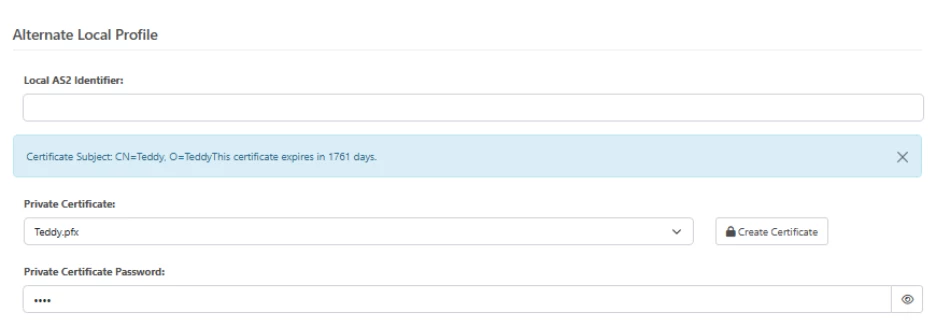
This certificate will be used in place of the Profile->AS2 Profile certificate for this partner, so it will be as if the change never happened.
Because it is easy to lose track of certificates configured in the advanced tab, it is recommended that you check in again in the future to see if the partner can use the new certificate, at which point this field can be cleared.