With built-in optimized data processing, the CData JDBC Driver offers unmatched performance for interacting with live data. When issuing complex SQL queries to your application, the driver pushes supported SQL operations, like filters and aggregations, directly to the app and utilizes the embedded SQL engine to process unsupported operations client-side (e.g. often in SQL functions and JOIN operations). In addition, the driver's built-in dynamic metadata querying allows you to work with and analyze application data using native data types.
This article explains how to install the CData JDBC Driver, configure a connection to data, and explore the data in DBVizualizer (a 3rd-party tool that supports JDBC connectivity).
It is important to note that although this article references the Salesforce JDBC Driver, the same principles herein can be applied to any of the 250+ data sources that we support.
Download and Install the Driver
First, download and install the JDBC Driver from the CData website: https://www.cdata.com/drivers/salesforce/download/jdbc/
Fill in the appropriate contact information.
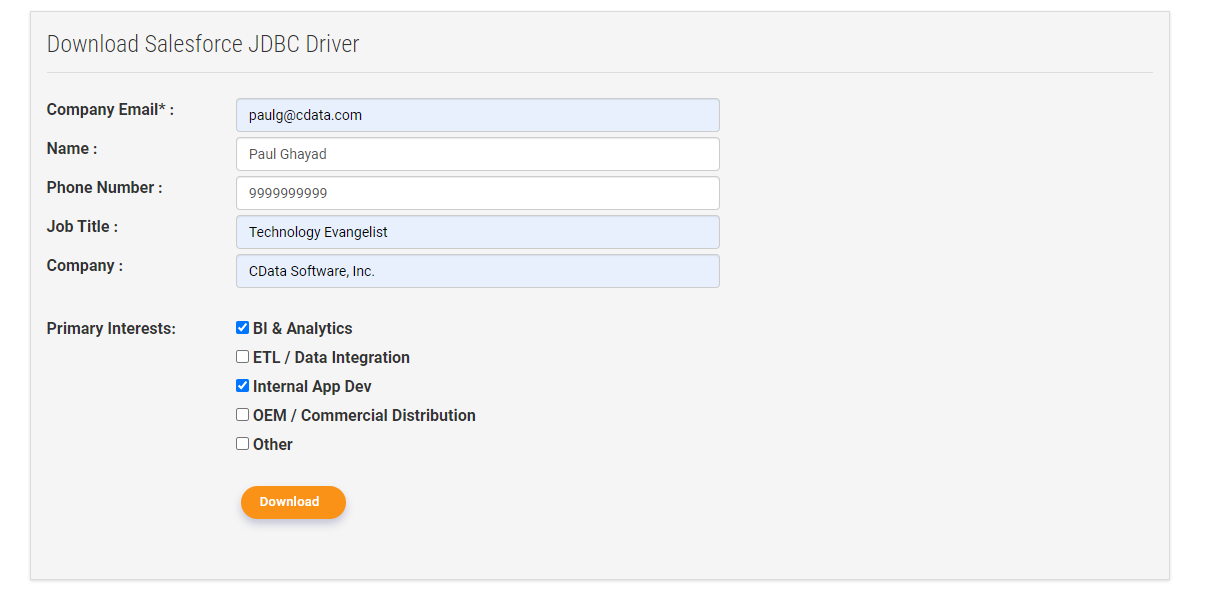
Note: If you are downloading a licensed installer, use your company email address and product key.
Configure the Connection String
Next, open up your terminal and use Java to run the JAR file, opening the built-in connection wizard:
java -jar cdata.jdbc.{datasource}.jar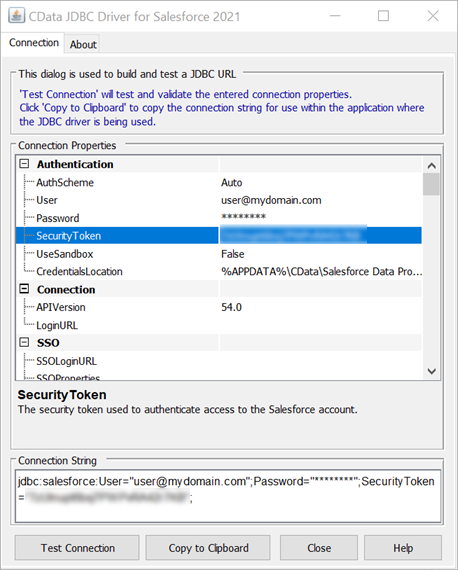
After filling in the connection properties (e.g. user, password, and security token), click "Test Connection."
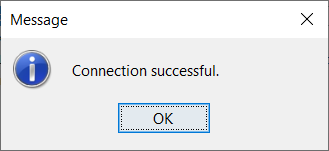
If you wish to see the populated data using DBVisualizer, save the connection string at the bottom of the previous window and continue to the next optional steps.
(Optional) Connect to Data in DBVisualizer
Download and install DBVisualizer (at the time this article was written, version 12 provided the best experience): https://www.dbvis.com/download/12.1/
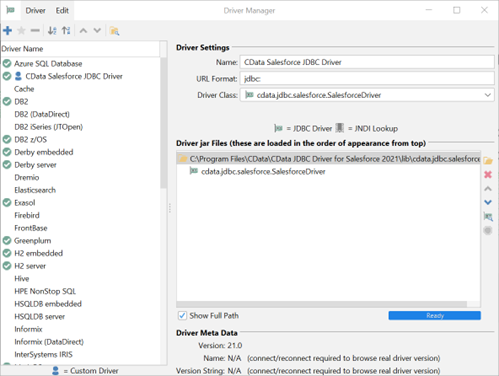
Open DBVisualizer and click Tools -> Driver Manager. Then, click the + sign in the top-left corner to create a new driver.
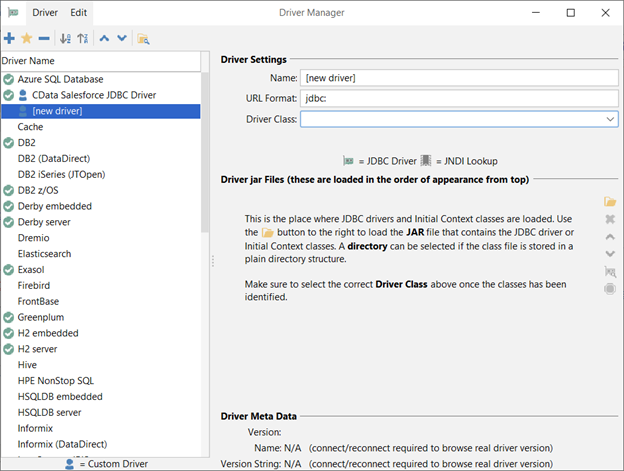
Give your driver a name and click the folder icon in the center-right of the window. Navigate to the install folder for the CData JDBC Driver to find the JAR file. Select the JAR file and click Open.
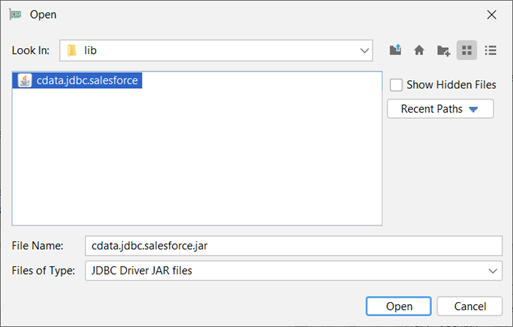
The Driver Class will automatically populate.
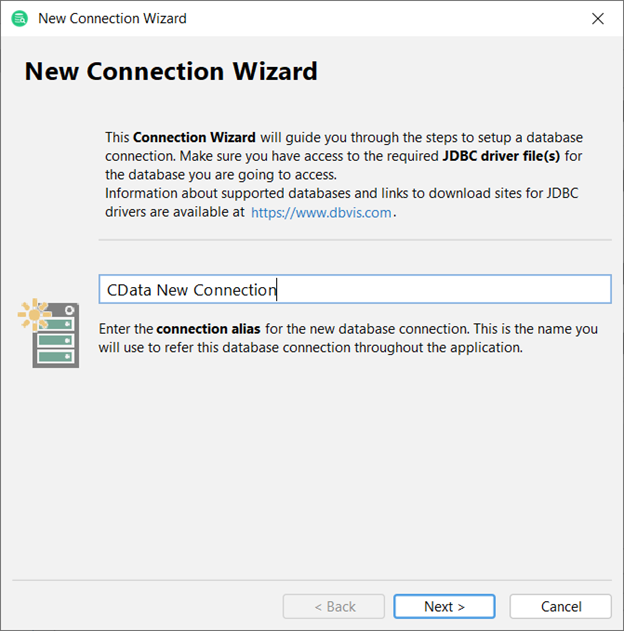
Close the Driver Manager and click Tools -> Connection Wizard... and name your connection.
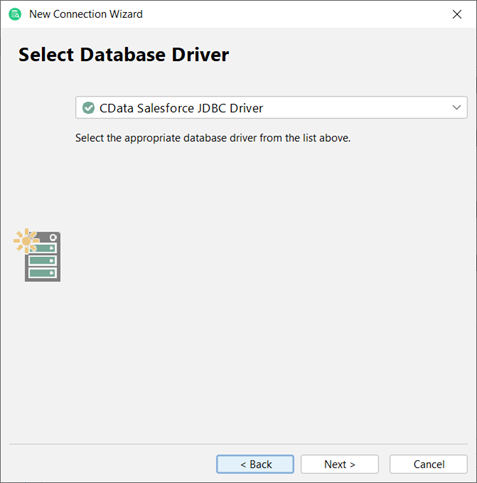
On the next screen, select the new CData JDBC Driver that you just configured.
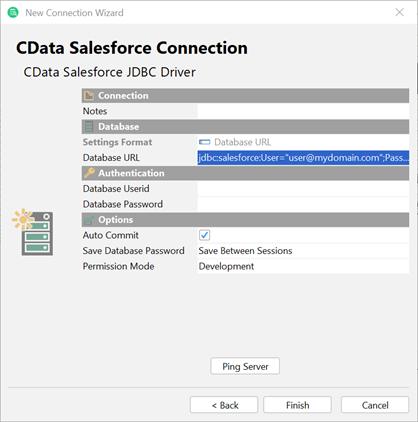
Paste the connection string from the previous connection string wizard into the Database URL input field, and click Finish.
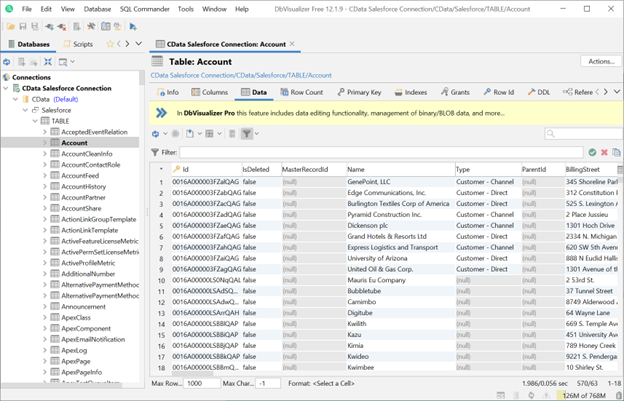
On the left panel in Visual Studio, you will see your new connection and all of the data.
CData JDBC Drivers - Getting Started
A brief overview of downloading, installing, and connecting to data using CData JDBC Drivers.
JDBC Drivers for 250+ Data Sources
For more information on CData's suite of JDBC drivers, visit our JDBC Driver page.
Download a free 30-day trial of the CData JDBC Driver and get simplified access to your data today.