

SQL Server Analysis Services (SSAS) allows you to build both tabular and multidimensional models. Tabular models support the relational model (model, tables, columns) of most data sources. Multidimensional models are Online Analytical Processing (OLAP) modeling constructs (cubes, dimensions, measures) built from relational data to provide deeper analytics and business intelligence.
Both technologies have their benefits, and which one is right for you is dependent on your organization's data and needs. If you're looking for a solution that is easier to learn, fast performance with in-memory processing, and you have datasets that are not exceedingly large, tabular models make a lot of sense. If you have large datasets, need advanced analytics features or are working with legacy systems that already use multidimensional modes (see our Office Depot Case Study), then multidimensional models might be more appropriate.
Thankfully, CData solutions allow you to build both tabular models (using our ODBC Drivers) and multidimensional models (using our ADO.NET Providers) for any of the 250+ supported SaaS, Big Data, and NoSQL sources. Due to limitations in the SSAS In this article, we briefly describe how to build either model using CData technologies. We use Snowflake as a data source, but the principals apply to any supported source.
Building SSAS tabular models with CData ODBC Drivers
Building a SSAS tabular model from real-time data involves 5 basic steps:
1a. Connecting to data
First, you'll need to configure your connection to the data source by configuring your ODBC DSN (data source name). This is the last step of the driver installation but can be completed later using the ODBC Data Source Administrator.

1b. Create a new Analysis Services project
Once the DSN is configured, create a new Analysis Services Tabular Project in Visual Studio.
2. Creating a Data Source
In the project in Visual Studio, create a new Data Source in the Tabular Model Explorer, using the DSN you just configured as the data source.

3. Adding tables & relationships
After creating the data source, import the table(s) you wish to work with and define the foreign key relationships between the tables.

4. Creating measures
Once you import the tables and define the relationships, create your desired measures based on the columns in your tables.

5. Deploying the model
Last, configure your deployment server and deploy the model. Now you have a tabular model of your Snowflake data in your SSAS instance, ready to be analyzed, reported, and more.
For a detailed guide, check out our in-depth Knowledge base article.
Building SSAS multidimensional models with CData ADO.NET Providers
Building a SSAS multidimensional model from real-time data involves 4 basic steps:
1a. Create a new Analysis Services project
Open visual studio and create a new Analysis Services Multidimensional and Data Mining Project.
1b. Creating a Data Source
In the new project in Visual Studio, create a Data Source based on the CData ADO.NET Provider (for Snowflake)

2. Creating a Data Source View
In the Solution Explorer, create a new Data Source View based on the new Data Source, configuring the foreign key pattern, and selecting the tables and views to model.
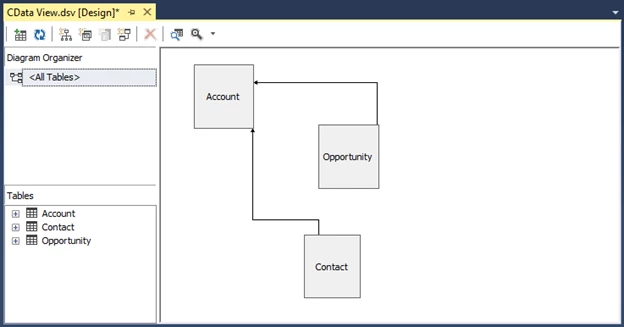
3. Create a Cube for Snowflake
In the Solution Explorer, create a new Cube, select the tables, measures, and dimensions you wish to model.
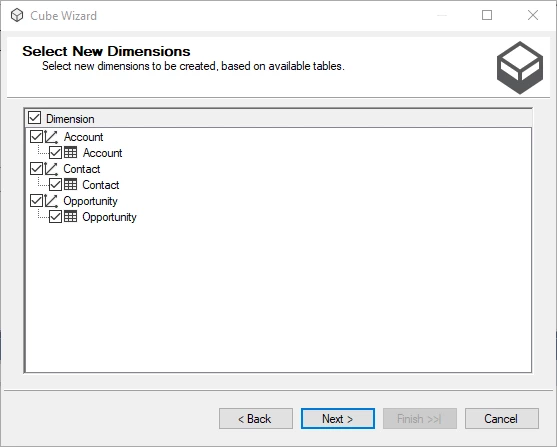
4. Process the project
Once the cube is configured, deploy it to SSAS. Configure the target server and database and process the project to build and deploy the cube. Now you have an OLAP cube for Snowflake in your SSAS instance, ready for analysis, reporting, and more.
For a detailed guide, check out our in-depth Knowledge base article.
More information & free trial
For more information on our connectivity solutions and to download a free trial, check out our drivers page.