
Update a Google Calendar with a Microsoft Access Linked Table

  • March 20, 2023
  • 3 replies
  • 70 views

Jerod
Forum|alt.badge.img

CData ODBC drivers connect your data to any database management tool that supports Open Database Connectivity (ODBC). This includes many of the most popular productivity tools, adding new capabilities for document sharing and collaboration. Using the CData ODBC driver for Google Calendar, you can update live Google data in Microsoft Access; for example, you can make updates to a calendar that can instantly be seen by other users.

Create a Google DSN

If you have not already, you will need to save Google connection properties in a data source name (DSN). Microsoft Access will use the DSN to connect. You can create and configure a DSN in the Microsoft ODBC Data Source Administrator. For a guide to set the required properties in the ODBC Data Source Administrator, see the "Getting Started" section in the help documentation.

Create a Linked Table to Google Calendar Events

Follow the steps below to create a linked table to Google Calendar Events.

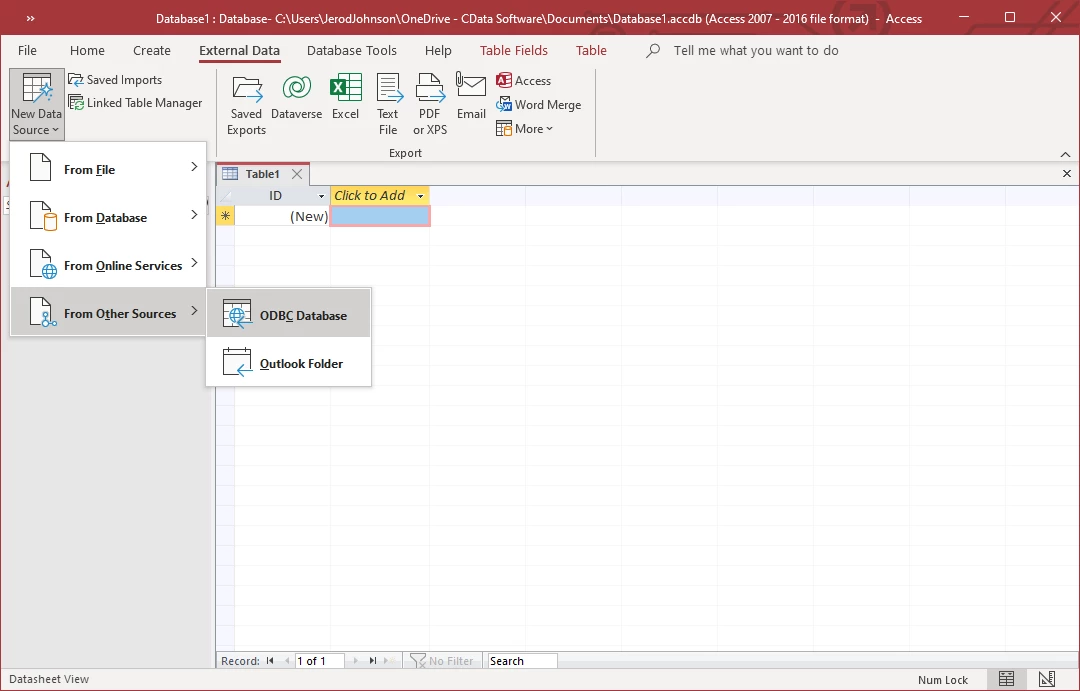
  1. In Access, click New Data Source > From Other Sources > ODBC Database.
     

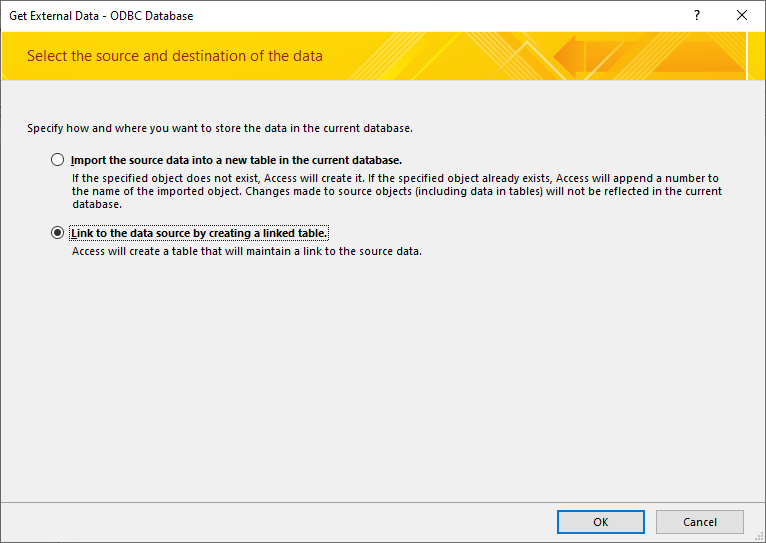
  2. Select the option to link to the data source. A linked table will enable you to read and write data to the calendar.


  3. Select the CData Google Apps data source from the Machine Data Source tab.


  4. Select the table that corresponds to the Calendar you wish to view (e.g. [email protected]).


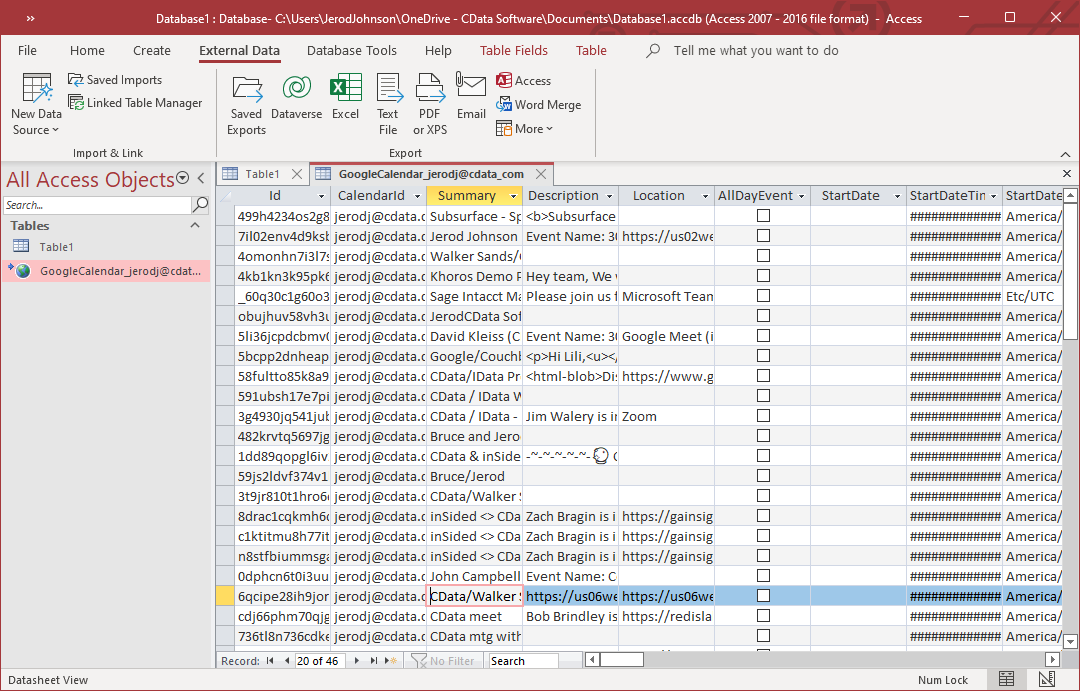
  5. Double-click the linked table to make edits. The linked table will always have up-to-date data and any changes made to the table will be reflected back to the underlying calendar.


3 replies

  • Apprentice
  • April 3, 2026

I was able to link and see all the data columns in my Google Calendar following the steps you outline.

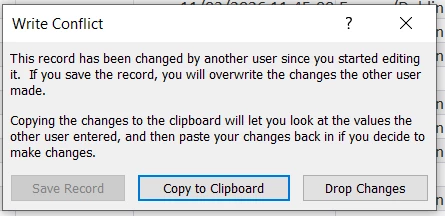
But when I go to edit an entry I get the following error:


This record has been changed by another user since you started editing it. If you save the record, you will overwrite the changes the other user made.
Copying the changes to the clipboard will let you look at the values the other user entered, and then paste your changes back if you decide to make changes.


Have you seen this issue, and how do I fix this please?

All help greatly appreciated -Thanks


Jerod
Forum|alt.badge.img
  • Author
  • Community Manager
  • April 3, 2026

Hi ​@RunnerIE,

The most likely culprit is that the query is pulling down read-only columns and attempting to update them along with your other updates. The easiest check for this would be to limit the query to select fields (columns), e.g. SELECT Id, Summary, StartDateTime, EndDateTime FROM Events

Another thing to try: Try setting Access’s record locking to "No Locks" (under File > Options > Client Settings > Advanced).

If neither of these solve your problem, you best channel will be our Support Team: https://www.cdata.com/support/


  • Apprentice
  • April 4, 2026

Hi Jerod, 


Thanks for the feedback. I tried both your suggestions (both changing the Advanced settings, and also limiting the data returned, by configuring the CDATA ODBC connection to have a 'User Defined' View' with just fields that are not read-only. Alas all to no avail.
But you did get me thinking -
I was able to create new records if I just entered data into fields that were not read-only using the calendar linked to Ms-Access by the ODBC DSN.
But still could not edit records when I changed field data in the ODBC table within Ms-Access. However I was able to create an UPDATE QUERY in access that would change calendar data when I filtered to a specific calendar ID, 
So, the issue seems to be that changing a field in MS-Access has it try to do an UPDATE to Google Calendar (which it doesn't seem to like) rather than a PATCH transaction (which works). 

So, progress - Your support was indeed greatly appreciated. I hope these comments help someone else? 

RunnerIE / BryceIT​​​​​