
Microsoft PowerShell is a command-line shell designed especially for system administrators. PowerShell includes an interactive prompt and a scripting environment that can be used independently or in combination. The CData Cmdlets are standard PowerShell modules that offer straightforward integration with 250+ popular SaaS, Big Data, and NoSQL sources using a single interface. The Cmdlets allow you to work with data in PowerShell no matter where the data is.
This example demonstrates how to use the CData Cmdlet for Salesforce inside of a PowerShell terminal to access Salesforce data within PowerShell.
It is important to note that although this article references the Salesforce PowerShell Cmdlet, the same principles can be applied to any of the 250+ data sources we support.
Download and Install the Cmdlets
First, download and install the PowerShell Cmdlets from the CData website: https://www.cdata.com/drivers/salesforce/download/powershell/
Fill in the appropriate contact information.
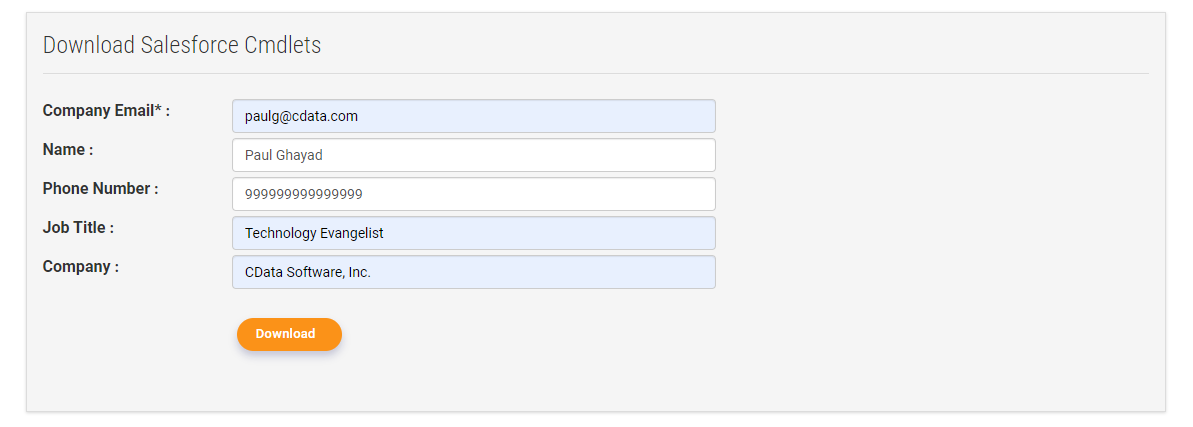
Note: If you are downloading a licensed installer, use your company email address and product key.
Using the Cmdlets Within PowerShell
Follow the steps below to access Salesforce data in PowerShell.
- First, open PowerShell in Administrator mode. Then, navigate to your desired directory and run the following command to install the module to your PowerShell environment:
Install-Module SalesforceCmdlets -Repository PSGallery -Force
- Next, establish a connection with our CData Salesforce connection with the following command:
$conn = Connect-Salesforce -User $user -Password $pwd -SecurityToken $sectoken
- Create a results variable to store the results of the SQL query we run below:
$results = Select-Salesforce -Connection $conn -Table Account -Columns "Name,AnnualRevenue" -Where "AnnualRevenue > 0"
- Display the results of the query with the following command:
$results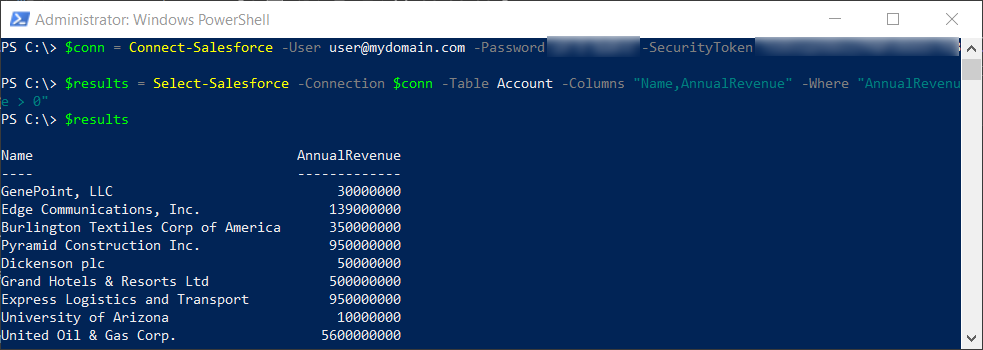
- At this point, you have accessed Salesforce data from within Windows PowerShell!
CData PowerShell Cmdlets - Getting Started
A brief overview of downloading, installing, and connecting to data using CData PowerShell Cmdlets
CData Cmdlets for 250+ Data Sources
For more information on CData's suite of cmdlets, visit our PowerShell Cmdlets page. Download a free 30-day trial of the CData SSIS Component and get simplified access to your data today.